
Contents
In a dynamic Google Workspace environment, an Email Alias is a vital tool for maintaining seamless communication. An alias acts as a secondary "forwarding" address that directs all incoming mail to a user’s primary inbox.
Whether a user needs a public-facing address for a specific marketing campaign, a shortened version of a long name, or a legacy address following a departmental rebrand, aliases allow for multiple digital identities without the overhead of additional Google licenses.
By managing aliases through gPanel’s User Management module, administrators ensure that no communication is lost during organizational changes, supporting overall communication continuity.
Understanding Alias Types in gPanel
Before modifying your directory, it is important to distinguish between the two types of aliases found within the platform:
-
Editable Aliases: These are all aliases that have been added for the selected user. These aliases can be edited or removed.
-
Non-Editable Aliases: These are all Domain Aliases for the selected user. These aliases can not be edited or removed due to system use purposes and auto created by the system
Add an alias
- Navigate to the Aliases tab within a selected user's profile.
- Click on the Add Alias button to open the configuration dialog.
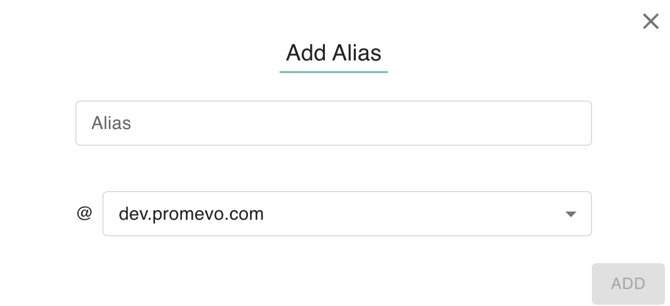
- Supply the Alias Name and select the preferred domain on the dropdown.
Remove an alias
-
Click the checkbox next to the desired alias.
-
Click the Delete icon (trashcan) to confirm the removal of the alias. You can delete multiple aliases at a time by selecting more than one.

Transfer an alias to another user or group
-
Click the checkbox next to the desired alias.
-
Click the transfer (two arrows) icon.
-
In the popup, enter the desired User or Group that you would like to transfer the alias to and then click Transfer. You can transfer multiple aliases at a time by selecting more than one.
