Contents
The Google Workspace Email Audit API allows Google Workspace administrators to audit a user's email, email drafts, and archived chats. This works by designating an audit user(s) or email monitor.
The admin will receive copies of the monitored user's email, drafts, and/or archived chats as attachments sent to their inbox.
Create a monitor
-
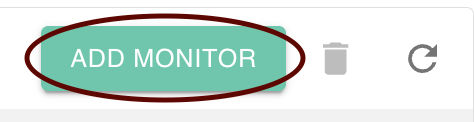
To create a monitor, click the Add Monitor icon.
-
Enter information for the following fields:
- Destination/Listening User: The destination user will receive blind carbon copies (Bcc) of all incoming and outgoing email messages. Each audited email message is sent to the destination user as an email attachment
- Monitoring Dates:
- Start Date
- End Date
- Monitoring Drafts Dropdown:
- Do no monitor drafts
- Draft headers only
- Full drafts monitoring
- Monitoring hangout Chats:
- Do no monitor drafts
- Draft headers only
- Full drafts monitoring
- Enable/Disable Outgoing Message Options: Header information or full message
- Enable/Disable Incoming Message Options: Header information or full message
This setting only applies to classic Hangouts Chat, not Google Chat. Hangouts Chat is deprecated.
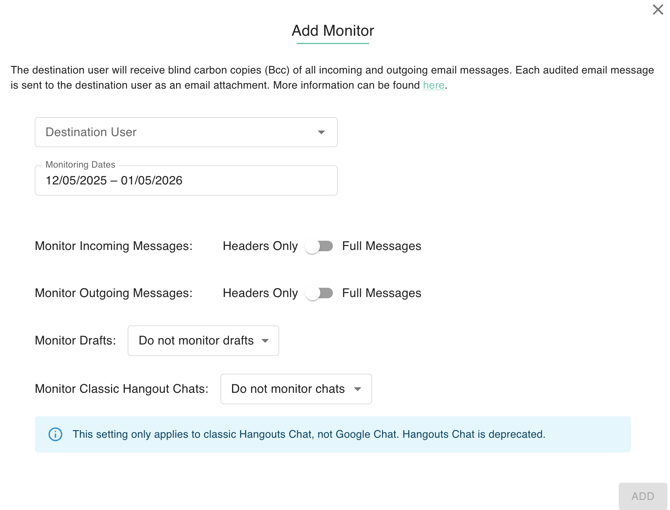
3. Once you entered all information, click Add.
Edit a monitor
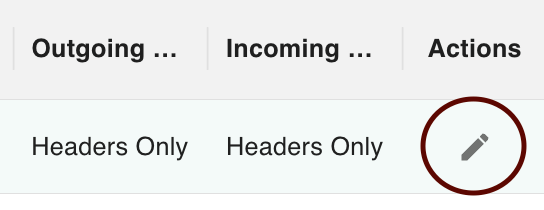
- Hover over the monitor that you want to edit and click pencil icon for edit
- In the popup, make your desired changes.
- Once you've made your desired changes, click Update.
Delete a monitor
- Select the monitor you want to delete, the click the trash icon.
- In the popup, confirm that you want to remove the email monitor and click Delete