
Contents
Delete a single user in gPanel
-
Select a User from the grid list of users.
-
In the upper right hand corner, click the trashcan icon.

-
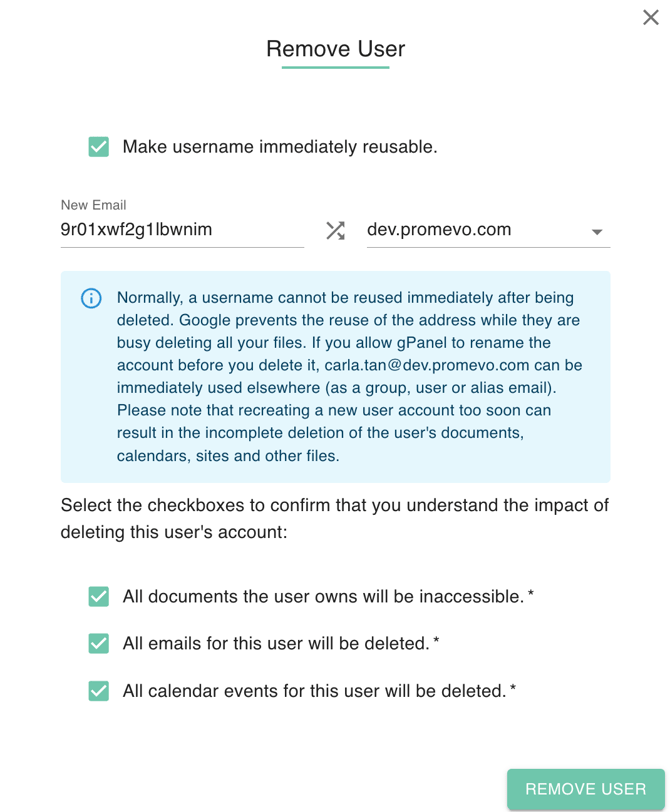
A window will appear and prompt you to confirm the user deletion.
You'll see an option to select "Make username immediately reusable." If you allow gPanel to rename the account before you delete it, the username that you just deleted can be immediately used elsewhere.
Please note that recreating a new user account too soon can result in the incomplete deletion of the user's documents, calendars, sites, and other files. To make the username immediately reusable, check the corresponding option. This will display the New Email field where you can rename the user to be removed. By default, gPanel will rename the account with a randomized email address.
For example, you may be deleting a user named John Doe but you are replacing him with another user named John Doe. The make username immediately reusable option will allow you to place the original John Doe's username with randomized username so the new John Doe can use his name.
-
Select all three checkboxes at the bottom to confirm that you understand the impact of deleting the user's account. You will not be able to proceed until you've checked all three of these boxes.
-
Click Remove User.
Delete multiple users in gPanel
-
Go to User Management.
-
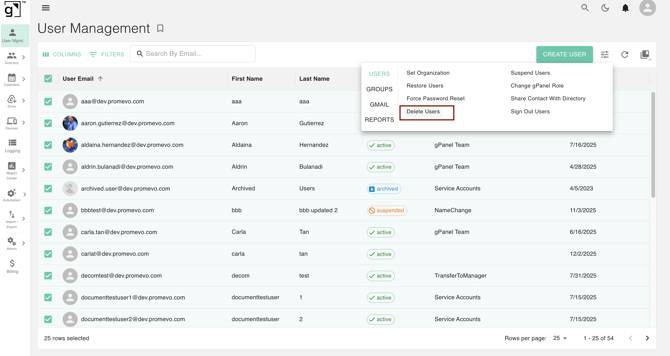
Select the users that you want to delete with the checkboxes.
-
Click Actions in the upper right hand corner and hover over Users. Click Delete Users.
-
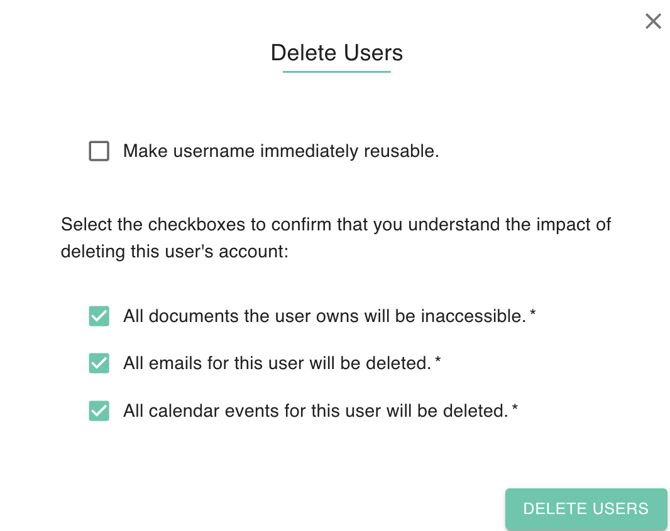
A window will appear and prompt you to confirm the user deletion.
You'll see an option to select "Make username immediately reusable." If you allow gPanel to rename the account before you delete it, the username that you just deleted can be immediately used elsewhere.
Please note that recreating a new user account too soon can result in the incomplete deletion of the user's documents, calendars, sites, and other files. To make the username immediately reusable, check the corresponding option. This will display the New Email field where you can rename the user to be removed. By default, gPanel will rename the account with a randomized email address.
For example, you may be deleting a user named John Doe but you are replacing him with another user named John Doe. The make username immediately reusable option will allow you to place the original John Doe's username with randomized username so the new John Doe can use his name.
-
Select all three checkboxes at the bottom to confirm that you understand the impact of deleting these users. You will not be able to proceed until you've checked all three of these boxes.
-
Click Remove Users.