Contents
Here are all the actions administrators can take in gPanel to manage their users' Google Drives and the files within them.
View a user's Drive
This section allows you to view a user's Drive structure, including folders and documents, create new folders, and transfer document ownership. You can also rename, edit shares, and move the location of folders and documents.
- Select the user from your user list by clicking on the user.
- Click on the Drive drive tab.
- To view content, choose either My Drive or Shared Drive. Use the shared drive checkbox to toggle the Shared Drive visibility.
My Drive
The Navigation Panel (My Drive, Shared with me, Starred, Trash) helps users browse and organize files. "My Drive" is the main private storage. "Shared with me" shows files explicitly shared by others. Starred is a quick-access location for important files.
Trash is a temporary holding area for deleted files, which can be restored before permanent removal. 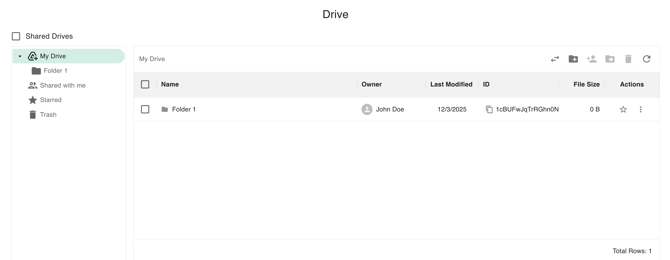
Shared Drive
The Navigation Panel serves as the central hub, clearly delineating the user's private My Drive storage from the organizationally-owned Shared Drives. This panel also offers dedicated, filter-based views for content that others have explicitly Shared with selected user.
the Filter tool enables users to quickly locate items by applying criteria such as file type or date, and authorized members can perform core actions like moving, deleting, refreshing the view, and creating a New Shared Drive to establish a new collaborative workspace for teams.

Edit a User’s Drive
Create New Folders
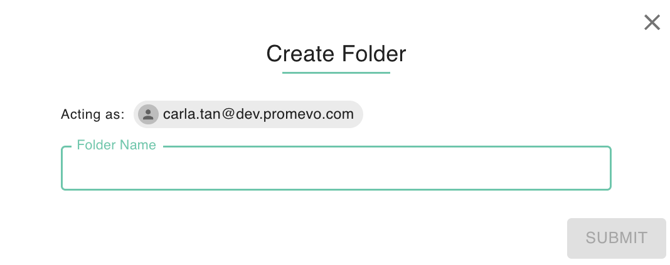
- Click the add new folder icon.
- Enter in the name of the new folder and then click Submit.
Transfer Ownership
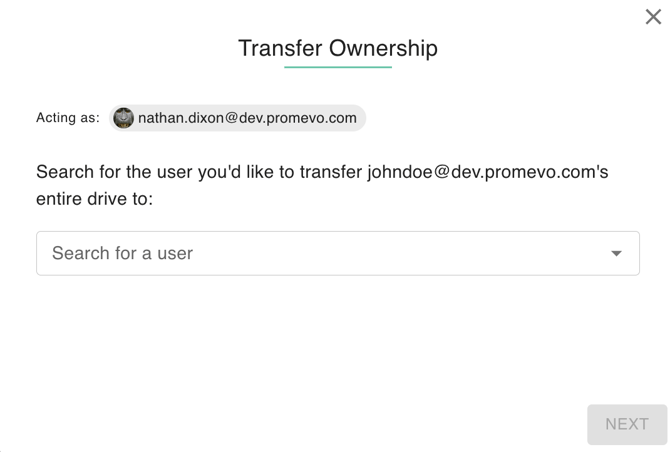
- Click the transfer icon : ⇄
- Select/Search user to transfer to, then click next for saving.
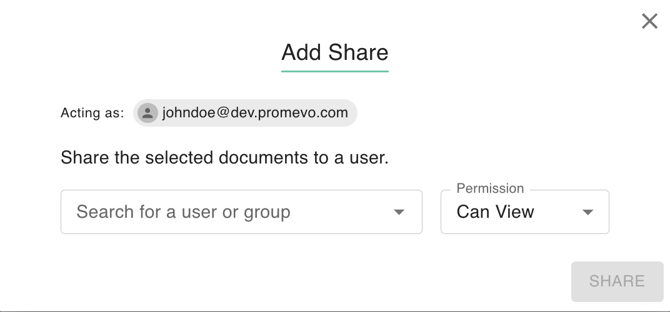
Add Share Folder/Document
- Click the add share icon.
- Select the user or group you want to added
- Select the Permission per user, Either Can View or Can Edit
Move a Folder/Document
- Select the move folder icon.
- For My Drive: In the pop-up window, first select the main destination: My Drive or a Shared Drive. Then, specify the exact folder within that destination where the item should be placed.
- For Shared Drive: Use the pop-up to search for or select the specific Shared Drive and the desired destination folder within it.
- Click Move.
.png?width=670&height=458&name=Drive_Move-Documents(myDrive).png)
.png?width=670&height=281&name=Drive_Move-Documents(SharedDrive).png)
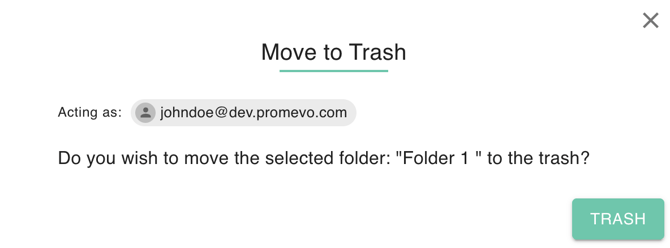
Move Folder/Document to Trash
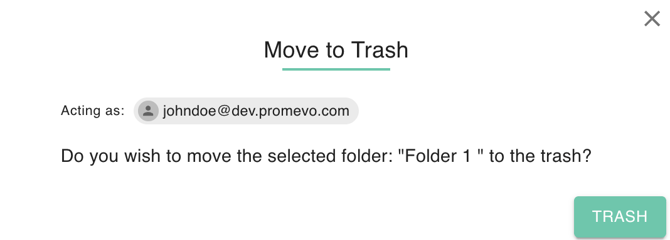
- Select the trash icon.
- Confirm the removal and click Trash.
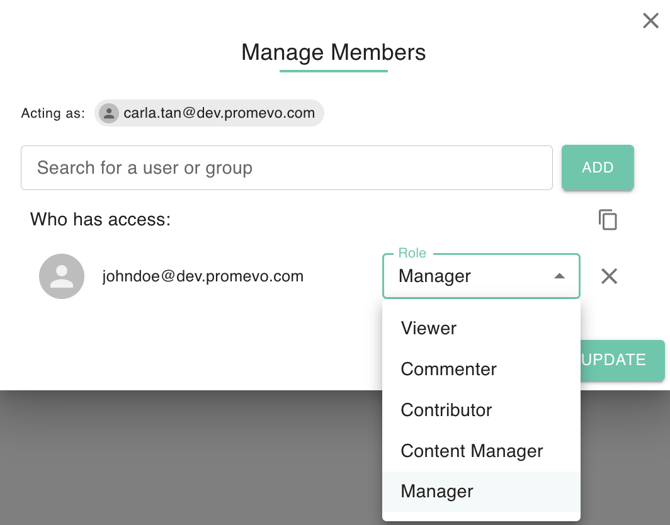
Share Shared Drive
- Select the target Shared Drive.
- Go to Action and select Share.
- The Manage Members Dialog will open.
- In the dialog, you can add new users by selecting them.
- You can also edit the access levels of current members or remove people with existing access.
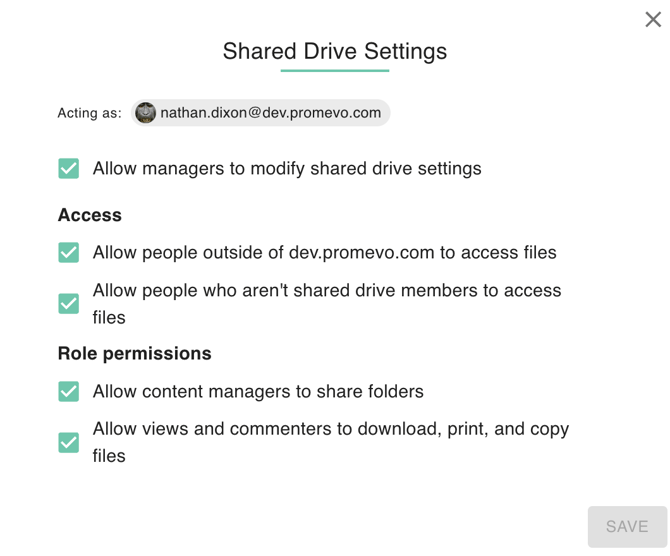
Edit Share Settings
- Select the target Shared Drive.
- Go to Action and select Settings.
- The Shared Drive Settings will open.
- In the dialog, you can check boxes for Access and Role Permissions
- Click Save once done.
Rename a Drive/ Document / Folder
- Click action
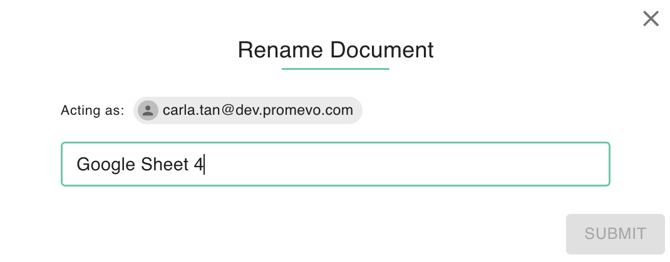
- Click Rename , A dialog box with headers: Rename Shared Drive, Rename Folder, Rename Document will appear.
- Supply a new name
- Click Submit
Share a Document/ Folder
- Click Action
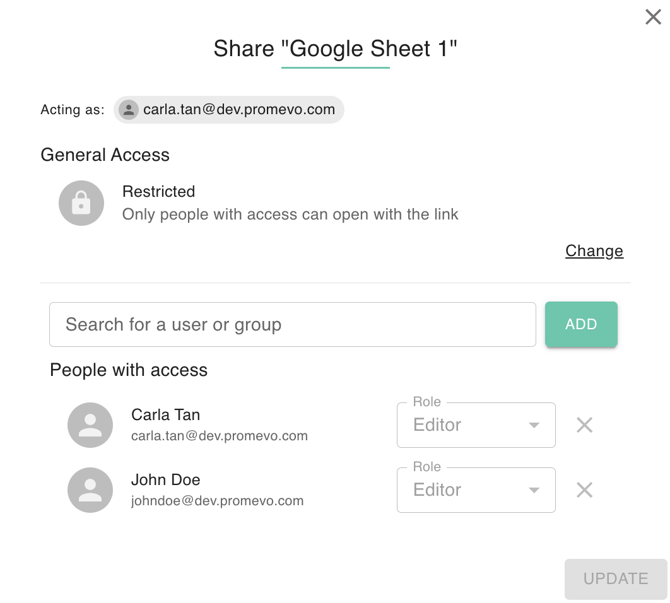
- Click Share. A dialog box with headers: Share Folder, Share Document will appear.
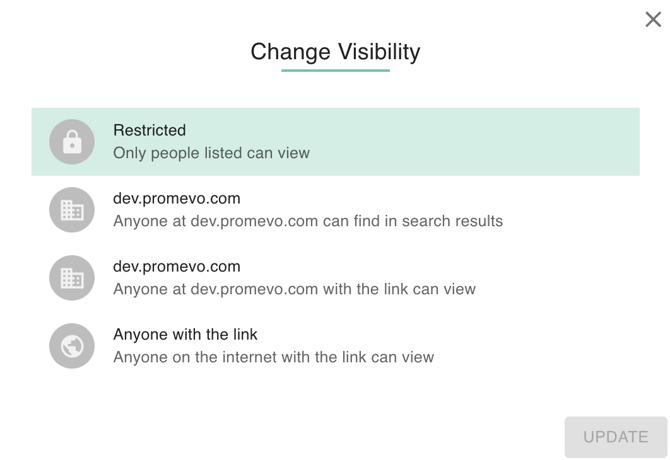
- Change the Visibility. Add New User or Group or Edit the role of people with access. For change visibility these are the options:
-
-
- Public on the web: Anyone on the Internet can find and access. No sign-in required.
- Anyone with the link: Anyone who has the link can access. No sign-in required.
- Anyone on your domain: People at your domain can find and access.
- Anyone on your domain with the link: People at your domain who have the link can access.
- Private: Only people explicitly granted permission can access. Sign-on is required.
-
4. Click Update
View a document
- Select the target Document/Folder.
- Go to Action and select Settings.
- The document or folder will open in a new tab.
Delete a document
- Select the target Document/Folder.
- Go to Action and select Settings.
- The document or folder will open in a new tab.
- To untrash a document or folder, first click on the Trashed folder.
- Click Untrash.