
Contents
General Settings
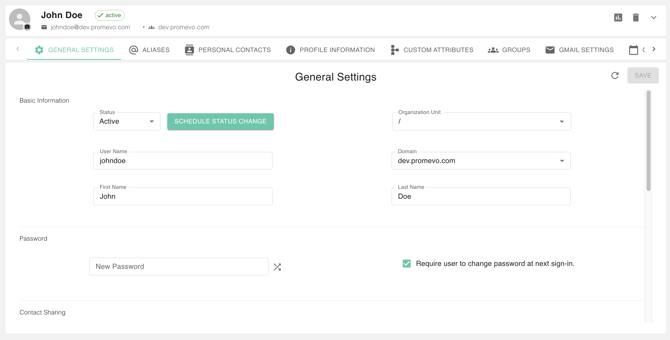
Found under User Details, the General Settings tab holds all the main, necessary information about a user's account and security. Admins use it for a fast overview and easy editing of a user's fundamental setup.
The fields can be modified by the authorized personnel and can be updated using the save button on the upper right.
Basic Information
This section handles the user's core identity, organizational placement, and account status within the system.
| Field | Description |
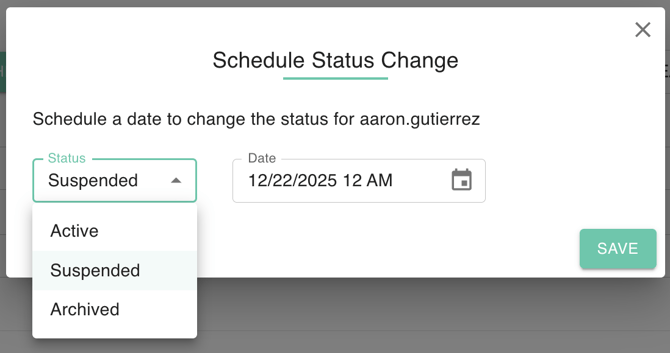
| Status | Indicates the current state of the user's account (e.g., Active, Suspended, Archived). The user can also set the status change and its effective date. See Scheduled Status Change |
| Rank Information | A custom or internal field, often used for defining the user's seniority, job level, or classification within the organization. |
| User Name | The unique account login name, which typically forms the prefix of the user's primary email address. |
| First Name | The user's given name. |
| Last Name | The user's surname or family name. |
| Organization Unit | Defines the specific organizational group, department, or team the user belongs to. |
| Domain | The primary internet domain associated with the user's account and email address. |
Schedule Status Change
This is a tool used by an administrator to pre-schedule a future change to the account's operational status (e.g., scheduling a suspension date, scheduled archiving). Unlike the suspension and restore bulk action, this tool will help set the date that is limited only for future dates and per user function.
Password
| Field | Description |
| New Password | Used by the administrator to manually reset or set a new password for the user's account. The cross arrow icon will allow the admin user to create a random shuffle password the user. |
Contact Sharing
| Field | Description |
| Automatically share contact information. | When enabled, the user's details (name, email, etc.) are published in the organization's global address list or directory, making them searchable by colleagues. |
Roles
This section governs the user's specific administrative or permission level within the management system (e.g., gPanel).
| Field | Description |
| gPanel Role | Defines the permissions and access rights the user has when interacting with the administrative panel or system features. |
Security Actions & Verification
This section provides controls for immediate security management and account verification methods.
| Field/Button | Description |
| DISABLE 2 FACTOR | A control to turn off Two-Factor Authentication (2FA) for the account. |
| FORCE SIGNOUT | A critical security action that immediately terminates all active login sessions for this user across all devices and applications. |
| Verification via E-mail | Shows the enrollment status of secondary verification methods linked to an external email address. |
| BACKUP CODES | A button allowing the administrator to generate or manage a set of one-time-use codes for emergency sign-in when 2FA is unavailable. |
Recovery Information
This external, private information is crucial for regaining account access if the user is locked out or forgets their credentials.
| Field | Description |
| Recovery Email | An alternate, non-work email address used for sending password reset links and recovery verification codes. |
| Recovery Phone | A personal phone number used to receive verification or password reset codes via text message or call. |