Contents
Account Delegation
Filters
Send As
Labels
POP Settings
IMAP Settings
Vacation Responder
Forwarding
Forwarding Addresses
Signatures
Account Delegation
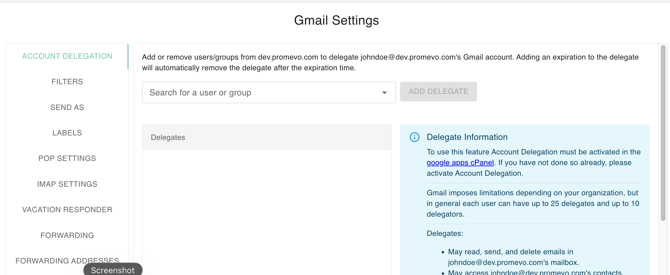
Account Delegation is a feature that allows a user (the owner) to grant another individual or group (the delegate) access to their Gmail account without sharing their password. This is a key capability for collaboration and management within a Google Workspace environment, often used by executives, team inboxes, or assistants to manage email on behalf of the account owner.
Add Delegate
- Search or Select User or Group
- Click ‘Add Delegate’
- The user / group will be moved to delegates
- Every delegate can set an expiration date, the system usually sets this by a week after by default. The expiration date will automatically set the date removal of the user or group.
- Click check once done.
Deletion of the Added Delegate
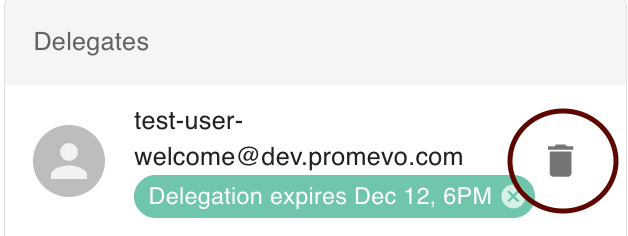
- Click the trash icon beside the user/group
- Click Remove on the confirmation modal once certain of the removal
Filters
The "Filters" feature in the Gmail Settings section of gPanel allows administrators or users to create, manage, and delete automated email rules for a specific user's inbox. These rules, known as filters, automatically sort and organize incoming messages based on predefined criteria, streamlining email management for the user and helping maintain organization-wide policies.
Add Filter
1. Click ‘Add Filter’
2. Enter the conditions or search criteria that you want to filter by. At least one of the conditions must be entered to continue.
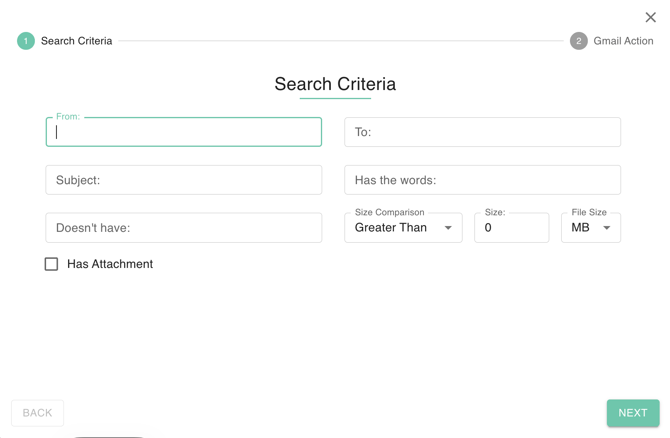
3. Click the ‘Next’ button to proceed with the Gmail Action Stepper, Select the action you want taken on mail that matches the filter criteria. At least one of the actions must be selected to add the filter.
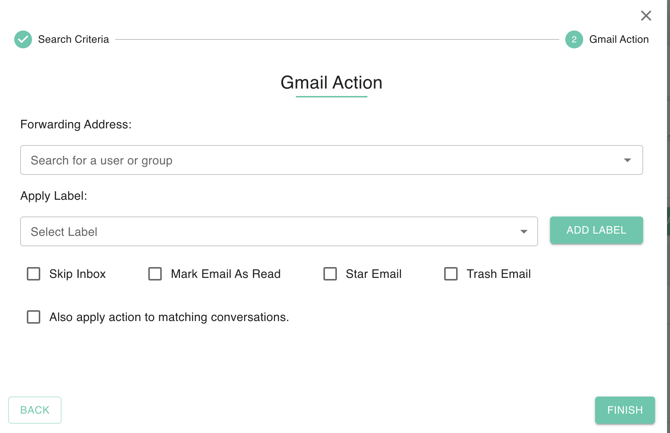
4. Click ‘Finish’ to save the filter.
Delete Filter
- Select the Filter from the list
- Select Trash Icon
- Confirm the Deletion.

Search Filter
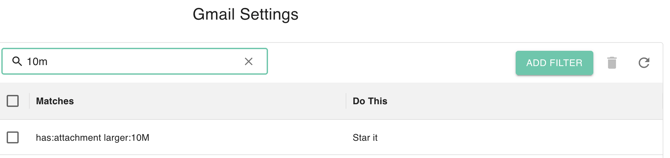
- Type Keyword on Search Bar
- Table will be filtered by the matched keyword
Send As
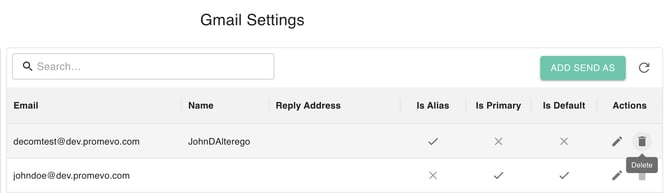
The Send As feature in the Gmail Settings of gPanel is designed to allow administrators to manage a user's custom "From" addresses. These custom addresses, or send-as aliases, are email addresses that the user can choose to send mail from, in addition to their primary Google Workspace address.
Add Send As Account
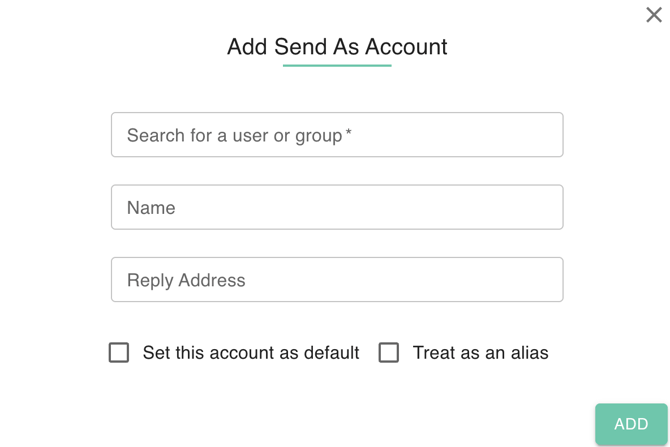
- Select Add Send As Button.
- Fill out the information. This means an admin can configure an address a user owns (like an alias, another Gmail account, or an external work/school address) to be selectable in the "From" field when the user composes an email. Default "From" Address: It allows the administrator to specify which of a user's send-as addresses should be the default address used when composing new messages.
- Click Add to Save the New Send As account.
Edit Send As Account
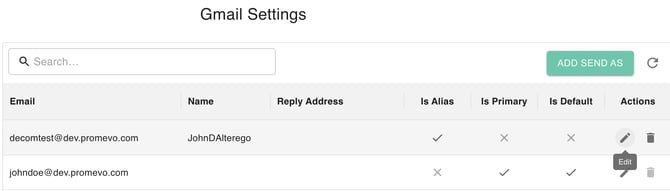
- Select the pencil icon to edit.
- Fields you can edit are
- Name
- Reply Address
- Checkboxes for Treat as an alias or Set this account as default
- Click Update once done.
Delete Send As Account
- Select the Trash Icon.
- Confirm Deletion.
Labels
The Labels feature in the Gmail Settings section of gPanel allows administrators to view, create, edit, and delete Gmail labels for a specific user's account. Labels are used as tags to organize and categorize emails in Gmail, offering more flexibility than traditional folders because a single email can have multiple labels.
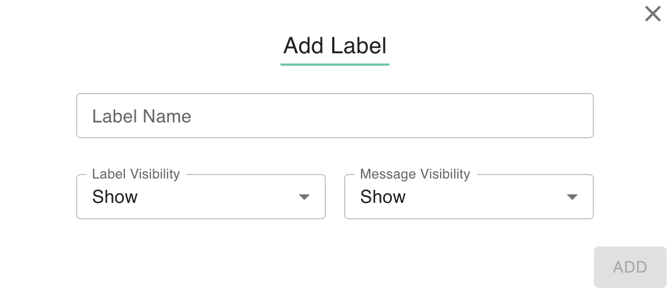
Add Label
- Select Add Send As Button.
- Fill out the information such as Label Name , Label Visibility: Show, Hide and Show Label if Unread, Message Visibility: Show and Hide
- Click add to Save Labels.
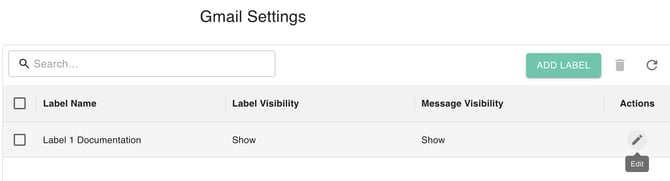
Edit Label
- Select the pencil icon to edit.
- Fields you can edit are
- Label Name
- Label Visibility: Show, Hide and Show Label if Unread
- Message Visibility: Show and Hide
Delete Labels
- Select Label/s
- Select the Trash Icon.
- Confirm Deletion.
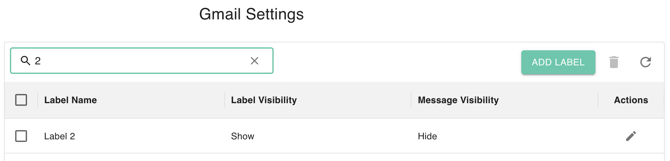
Search Filter
- Type Keyword on Search Bar
- Table will be filtered by the matched keyword
POP Settings
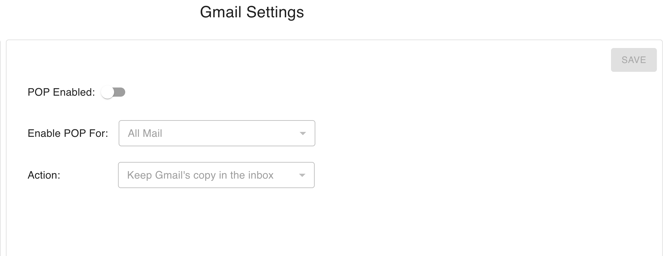
This feature controls the user's ability to access their Gmail account using the Post Office Protocol (POP3) and determines what happens to the original email copy on the server after it is downloaded by a mail client.
- POP Enabled/Disabled: This is the main switch to turn POP access on or off for the user; if disabled, the user cannot connect their account using a mail client like Outlook.
- Enable POP For: This determines which emails can be downloaded by the mail client—either All Mail (everything currently existing) or Mail that arrives from now on (only new messages).
- Action: This specifies what happens to the email on the Gmail server after the client downloads it. Options include keeping the copy in the inbox, archiving it to 'All Mail', or deleting it (moving to trash).
IMAP Settings
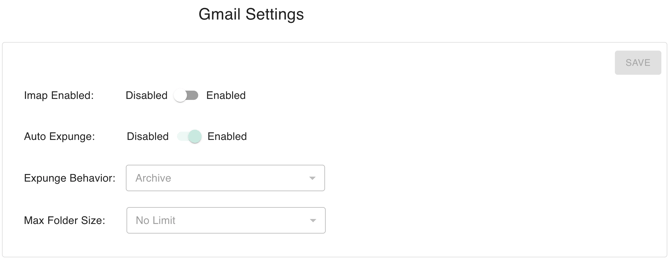
Thr IMAP Settings feature in gPanel allows administrators to control a user's access to their Gmail account using the Internet Message Access Protocol (IMAP).
IMAP is a protocol that lets a user's mail client (like Outlook, Apple Mail) access and synchronize mail directly on the server, ensuring that changes made in the client are reflected in Gmail (and vice-versa).
- IMAP Enabled/Disabled: This is the master switch to turn IMAP access on or off for the selected user. If disabled, third-party mail clients cannot connect to the user's account using IMAP.
- Auto Expunge: When Enabled, this setting causes messages to be permanently deleted immediately after they are marked for deletion in the mail client. When disabled, messages are simply marked for deletion but not permanently removed until the folder is manually expunged.
- Expunge Behavior: This determines where messages go when they are marked for deletion in the mail client (e.g., deleted in Outlook). Options include moving the message to the Trash, Archiving it (moving it to All Mail), or deleting it permanently.
- Max Folder Size: This setting limits the number of messages that can be downloaded or synchronized in any single IMAP folder (like the Inbox). The common setting, as shown, is No Limit.
Vacation Responder
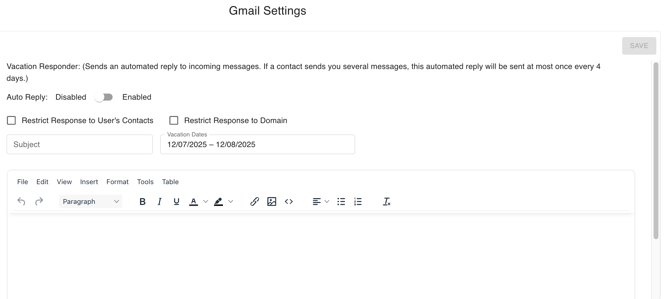
The Vacation Responder feature in the Gmail Settings of gPanel allows an administrator to set up or manage an automated "Out of Office" reply for the selected user. This automated reply is sent to anyone who emails the user while the responder is active.
- Auto Reply (Disabled/Enabled): This is the master switch to turn the Vacation Responder on or off. When enabled, the automated reply will be sent to incoming messages.
- Restrict Response to User's Contacts: When checked, the auto-reply will only be sent to senders who are in the user's Google Contacts.
- Restrict Response to Domain: When checked, the auto-reply will only be sent to senders who are within the same Google Workspace domain as the user.
- Vacation Dates: This field defines the start and end dates during which the automated reply will be active. The current selection is 12/07/2025 – 12/08/2025.
- Subject and Message Body: These fields allow the administrator to input the Subject line and the main Message text for the automated reply.
Forwarding
Email Forwarding for a user within the Google Admin Panel (GPanel) of a Google Workspace account.
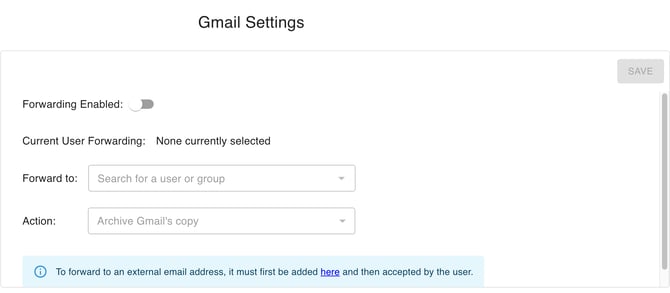
Email Forwarding automatically redirects a user's incoming mail to another specified email address or group. An administrator uses this feature to manage mail flow, such as when an employee leaves the company or when mail needs to be rerouted for organizational purposes.
- Forwarding Enabled: This is the master switch (toggle) that an administrator uses to turn the automatic forwarding on or off for the selected user.
- Current User Forwarding: This area displays any forwarding rule that the individual user may have set up themselves via their personal Gmail settings. The image shows "None currently selected."
- Forward to: This is the destination field where the administrator specifies the exact email address or group that will receive a copy of all the selected user's incoming emails.
- Action: This field determines what happens to the original email that lands in the source user's inbox after it has been forwarded. The option "Archive Gmail's copy" (selected in your image) means the original message will be automatically moved out of the user's Inbox and placed into their "All Mail" folder.
- Information Note: The blue box reminds the administrator that if they wish to forward mail to an address outside the organization (an external email address), that address must first be validated and accepted by its owner as a security measure.
Forwarding Addresses
The forwarding address is the destination—the email address (either an individual user or a group) that will receive a copy of all new messages sent to the original user's primary email address.
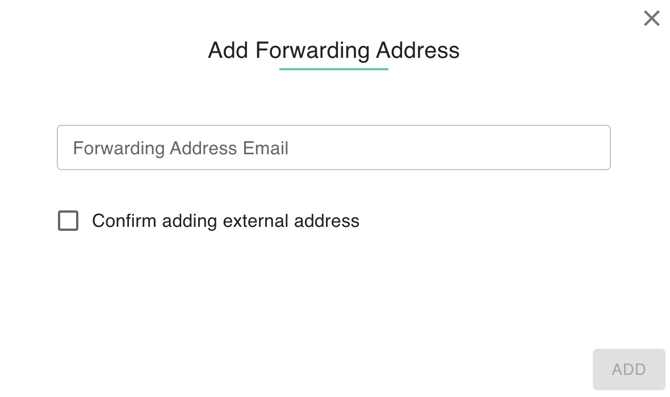
Add Address
- Select Add Address Button.
- Fill out the information such as Forwarding Address Email and checkbox confirm adding external address.
- Click add to Save Forwarding Address.
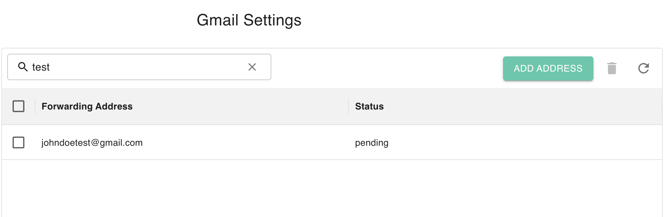
Search Address
- Type Keyword on Search Bar.
- Table will be filtered by the matched keyword.
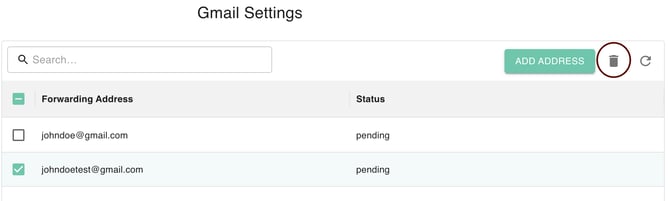
Delete Address
- Select Address.
- Select the Trash Icon.
- Confirm Deletion.
Signatures
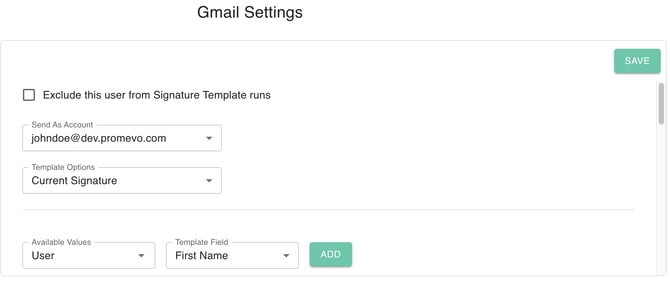
The settings shown are for managing a user's Email Signature Template, typically found in the gPanel tool or a similar centralized signature management solution for Google Workspace. This feature allows an administrator to automatically enforce consistent branding, legal compliance, and up-to-date contact details for all users' email signatures across the organization.
- Exclude this user from Signature Template runs: This is a checkbox that allows the administrator to exempt the selected user from the organization-wide signature template. If this is checked, the user's signature will not be automatically updated or overwritten by the system, allowing them to maintain a personal or manually configured signature.
- Send As Account: This field specifies the email address (the "Send As" identity) that the signature template will be applied to. Since a user can have multiple email aliases, this ensures the correct template is assigned to the intended sending address (e.g., johndoe@dev.promeve.com).
- Template Options: This field allows the administrator to select a specific template from a library of pre-designed organizational signatures. Templates may be customized for different groups or organizational units (e.g., "Sales Team Template," "Executive Template").
- Available Values / Template Field / ADD (Dynamic Field Insertion): This section is used to build a dynamic signature by inserting placeholders that automatically pull data from the user's Google Workspace profile (Directory).
- The administrator selects the data source (e.g., User) in Available Values and the specific data point (e.g., First Name, Job Title, Phone Number) in Template Field.
- Clicking ADD inserts a variable into the template (like ) that is replaced with the user's current information when the signature is deployed, ensuring accuracy and saving time on manual updates.
- Build Conditional: This option is for creating a set of rules (an "if-then" statement) for a section of the signature. For example: IF a user is in the "Sales Team" group, THEN include the marketing banner and their mobile number.
- Before Field / After Field: These fields solve a common problem when using dynamic placeholders: missing data.
- They define the static text or punctuation that should only appear if the data in the Template Field is present for the user.
- Example without: If a user has no mobile number, the signature might look like: Phone: 123-456-7890 | Mobile: (with an empty space).
- Example with: The administrator could put the pipe symbol and the word "Mobile: " in the Before Field. If the mobile number data is missing, the entire section (Before Field + Template Field) is suppressed, keeping the signature clean and professional.