
What is an alias?
An alias is a forwarding email for a Google user account. If you add alias@yourdomain.com to your domain, all email sent to "alias@yourdomain.com" will be delivered to this user.
Aliases: These are all aliases that have been added for the selected user. These aliases can be edited or removed.
Non Editable Aliases: These are all Domain Aliases for the selected user. These aliases can not be edited or removed due to system use purposes and auto created by the system
Add an alias
- Navigate to Aliases Tab of the user selected.
- Click on the
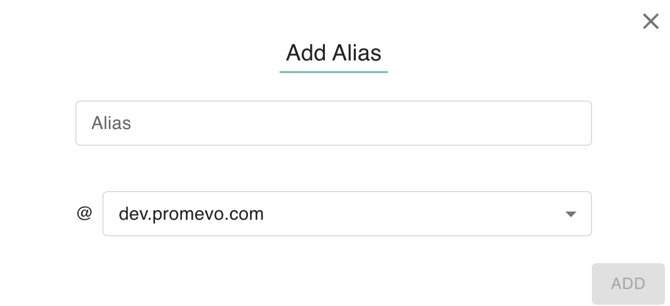
 button, the Add Alias Dialog box will open.
 - Supply the AliasName , and select the preferred domain on the dropdown
Remove an alias
Click the check box next to the desired alias and then click the Delete icon to confirm the removal of the alias. You can delete multiple aliases at a time by selecting more than one.

Transfer an alias to another user or group
Click the check box next to the desired alias and then click the Transfer icon. Then Click the transfer Icon.
In the popup, enter the desired User or Group that you would like to transfer the alias to and then click Transfer. You can transfer multiple aliases at a time by selecting more than one.
