
Contents
Custom Attributes Information and Fields
Add a custom attributes field
Edit a custom attributes field
Delete a custom attributes field
A modern directory needs to be as flexible as the organization it serves. Beyond standard contact details, Custom Attributes allow your domain to capture and display specialized data points that are unique to your company’s culture and operational needs.
By allowing users to view and manage these fields within the gPanel User Portal, organizations can maintain a high-fidelity system of record without overwhelming the IT department with manual data entry.
These attributes are organized into schemas (or categories), which act as top-level sections for custom information. Whether your administrator has created a schema for "Emergency Contact Info," "Remote Work Equipment," or "Internal Certifications," the User Portal provides a transparent interface for keeping this data current.
Custom Attributes Information & Fields
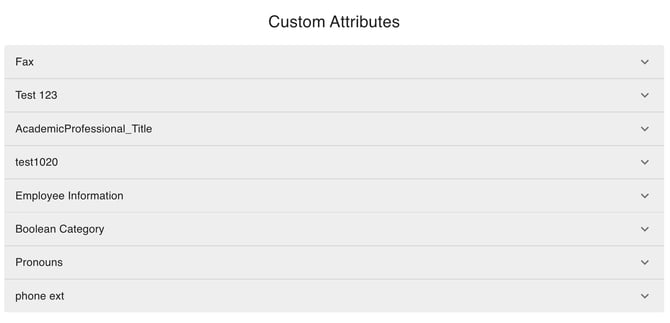
Custom Attributes appear as additional sections above or alongside your standard personal information. Common examples of custom schemas include:
-
Office Logistics: Fax numbers, building access codes, or parking permit IDs.
-
Employee Perks: Anniversary dates, dietary preferences, or t-shirt sizes for company events.
-
Technical Assets: Asset tags for assigned laptops or software license keys.
Add a custom attributes field
- Navigate to the Custom Attributes tab in the gPanel User Portal.
- Scroll to the desired Schema section (e.g., "Internal Logistics").
- Click the Plus (+) icon next to the empty field.
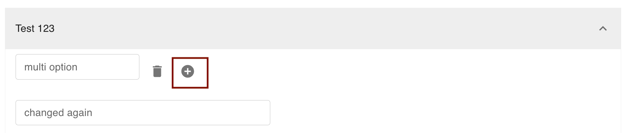
- Enter your information. Depending on how the administrator configured the field, you may need to type text, check a box, or select an option from a Dropdown Menu.
- Once you have entered the data, click the Save button in the top right-hand corner to update your profile globally.
Edit a custom attributes field
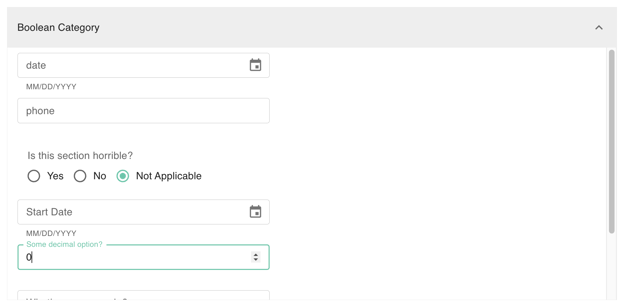
- Simply click into an existing field and type the new information or change your selections.
- Click Save in the top-right corner of the screen.
Delete a custom attributes field
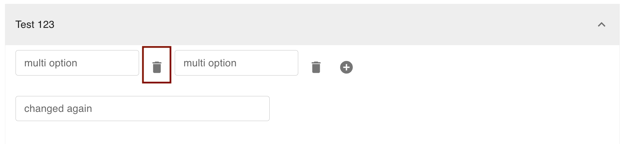
- Click the Trash Can icon next to the field, or simply backspace the text until the field is empty.
- Click Save in the top-right corner of the screen.
While users can manage their own data, these fields are originally provisioned by gPanel Administrators. This ensures that the directory remains standardized and professional. By maintaining accurate Custom Attributes, you contribute to a more searchable, transparent, and efficient domain governance strategy.