
Contents
What is the user portal?
gPanel's User Portal is an area that all of the users in your domain — not just administrators — can access.
From this page, users can independently update the information associated with their account, such as addresses, phone numbers, and emails. From this home screen, users also have the option to view their groups, contacts, and can also do a directory search for another domain user.
Any changes made in the gPanel user portal will sync and be reflected across all Google Workspace apps.
gPanel's User Portal empowers users to manage their own profiles and contact information without requiring IT intervention. It saves time, reduces errors, and gives users more control over their data.
Profile information and fields explained
In the Profile Information section of gPanel's User Portal, users can view and edit the following information associated with their Google Workspace profile:
- Employee Information: Information that pertains to the employee such as Employee ID, Job Title, Type of Employee, Work Number, Manager's Email and Department
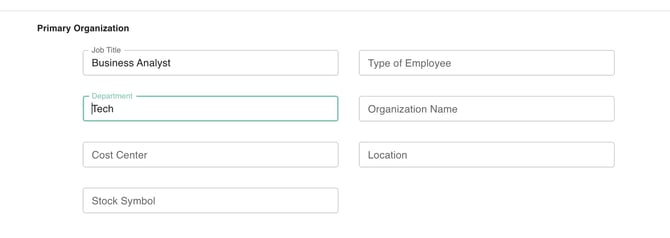
- Primary Organization: Information that includes Job Title, Department. Employee Type, Organization Name, Cost Center, Stock Symbol and Location
- Google Attributes
- Addresses: Addresses for Home, Office, Other which you wish to publish in your organization's Google Workspace contacts for that user
- Email Addresses: Email addresses (including primary and alias Google Workspace domain email addresses) which you wish to publish in your organization's Google Workspace contacts for that user
- Gender: This field is used to identify and categorize user demographics. The data is essential for addressing specific user needs and analyzing/mitigating various forms of inequality or bias within the user base. Available options include Female, Male, Other, and Unknown. This information also assists in using appropriate pronouns and forms of address (e.g., "his" or "her," or other names)
- External ID: Account, customer, and organization information which you wish to publish in your organization's Google Workspace contacts for that user
- Instant Messaging: Instant messaging type and address which you wish to publish in your organization's Google Workspace contacts for that user
- Notes: The user can apply special notes that pertain to their account
- Organizations: Business, department and location information which you wish to publish in your organization's Google Workspace contacts for that user
- Relations: Relationship or associate information which you wish to publish in your organization's Google Workspace contacts for that user
-
- Phone Numbers: Work, Home, Mobile, Other phone numbers which you wish to publish in your organization's Google Workspace contacts for that user
-
- Addresses: Addresses for Home, Office, Other which you wish to publish in your organization's Google Workspace contacts for that user
-
- Websites: Here you apply a users website that they may own or express interest in
Tips for Users: Managing Your gPanel Profile
Users can take the following steps to update their profile.
Add a profile field
- Click the Plus sign icon next to the field you'd like to update.
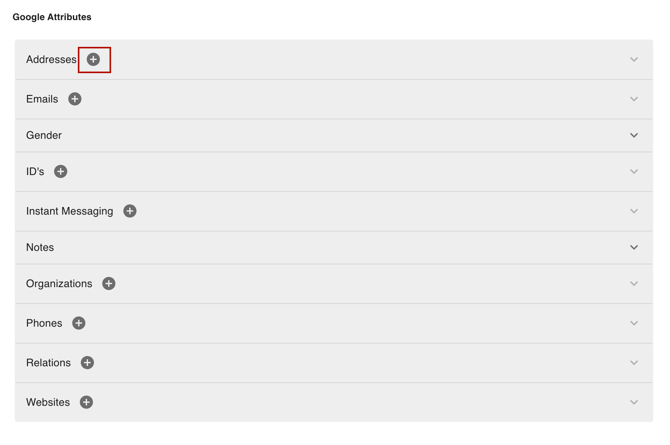
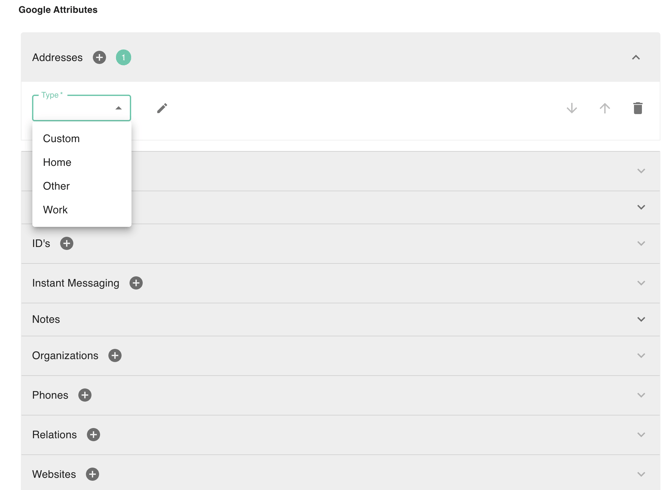
- Enter your desired information. Some fields have an additional dropdown to indicate type. For example, the Addresses field has a dropdown to select if the email is a Home, Work, Other or Custom.
- Once you have entered your desired information, click Save at the top right of the screen.
Edit a profile field
-
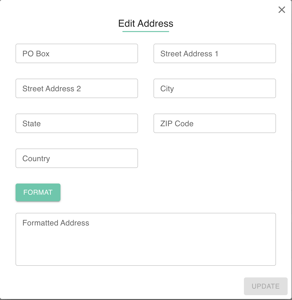
Select the field that you wish to edit and type in the new information. For fields with multiple lines of information, such as Addresses, click on the icon with three dots to open the edit window for that field.
-
Some fields have an additional dropdown to indicate type. For example, the Emails field has a dropdown to select if the email is a Home email, Work email, Other email, or Custom. Some fields allow you to move the order of which they are displayed using the Move up or Move down arrows.
-
Once you have made the desired changes, click Save at the top right of the screen.

Delete a profile field
-
Select the trashcan icon next to the field you wish to remove.
-
Click the Save button.
