
Effective domain governance requires a granular approach to permissions. While Google Workspace offers standard administrator roles, they often provide "all-or-nothing" access that may not align with your specific organizational needs.
The Role Manager in gPanel (located under Administration > Role Manager) solves this by allowing you to create highly specific, custom roles.
By defining custom roles, you can implement the Principle of Least Privilege. This ensures that team members — such as HR assistants, help desk technicians, or department leads — have exactly the tools they need to perform their jobs without gaining access to sensitive areas like Gmail Deletion or global Directory settings.
Step-by-Step: Creating a New Role in gPanel
- To begin building your custom security structure, navigate to Administration > Role Manager.
- Click the Add Role button in the top right-hand corner.

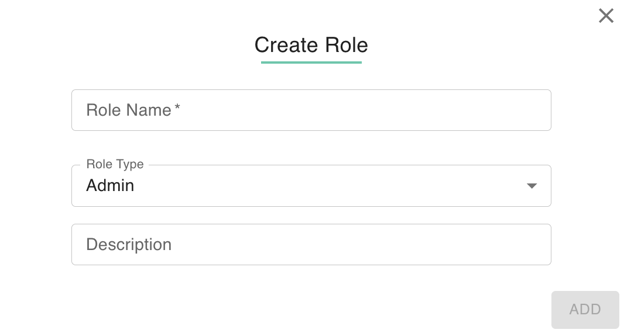
- The Create Role window will appear, prompting you to enter the foundational details for the new position:
-
Role Name: Provide a clear, functional title (e.g., "Drive Audit Specialist" or "HR Onboarding Coordinator").
-
Role Description: Use this field to document exactly why this role exists and which specific departments it serves. This is vital for long-term Administrative Hygiene.
-
Role Type: This is a critical architectural choice that determines the baseline of the role's capabilities.
-
Admin Role: This is a "top-down" template. It starts with zero permissions selected but provides the interface to toggle any administrative capability across the entire gPanel platform. Use this for users who need to perform management tasks.
-
User Role: This is a restricted "view-only" template. It includes only user-level view permissions and excludes administrative tools. This is ideal for users who need to see information within gPanel (such as looking up a colleague in gPanel Contacts) without the ability to modify settings.
-
-
-
Click Save to finalize the creation of the role. Once the role is saved, it will appear in your Role Manager list.
Now that the role is created, you can edit it to select permissions, add users, exclude users, and more.