
Contents
Maintaining a consistent Google Workspace environment shouldn't require constant manual intervention. The Policies module in gPanel acts as a governance engine that automatically establishes and enforces your organization's "Standard Operating Procedure."
Whether you are ensuring that all users have brand-compliant email signatures or proactively reverting unauthorized changes to Drive sharing permissions, Policies work in the background to keep your domain secure and organized by default.
Policies are available across all gPanel product tiers, but please note that the gPanel Starter tier only includes up to 50 active policies.
Create a Policy
-
Navigate to the Policies section (Automation > Policies).
-
Click the Create Policy button in the top right corner.

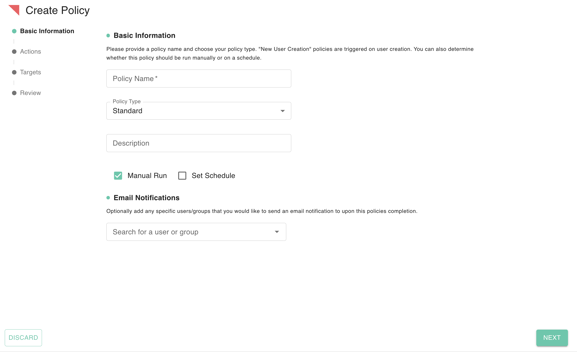
- Fill out the following information:
- Policy Name & Type: Provide a descriptive name. Choose between a Standard policy (for ongoing maintenance) or New User Creation (to automate onboarding tasks the moment an account is made).
- Execution Method: Choose Manual Run for one-time fixes or Scheduled Run for continuous enforcement.
- Notifications: Designate users or groups to receive email alerts whenever the policy executes, providing a transparent audit trail.
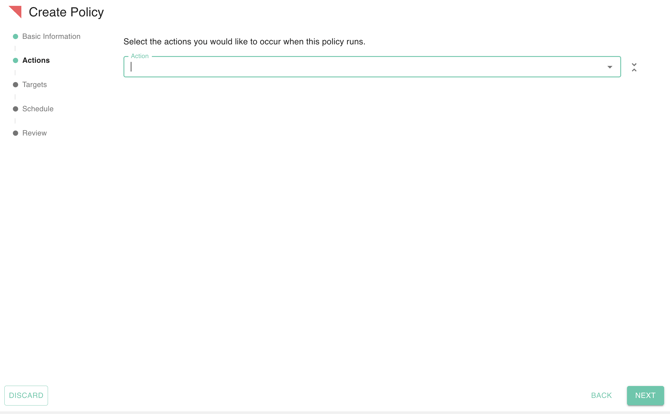
- Next, select the actions you would like to occur when this policy runs. You can select multiple actions to run simultaneously, such as:
- Add Delegate To Account
- Add Send As
- Add To Group
- Add To Shared Drive
- Change Contact Sharing
- Change cPanel Role
- Change gPanel Role
- Change IMAP
- Change POP
- Clear Primary Calendar
- Create Gmail Filter
- Create Gmail Label
- Disable Two Factor
- Duplicate User Groups
- Force Password Reset
- Hide From Directory
- Last Login Action
- Reassign Aliases
- Remove Delegate From Account
- Remove Domain Findable Shares
- Remove From Group
- Remove Public Shares
- Remove Specific Shares
- Set Forwarding
- Set Organization
- Set Profile Information
- Sign Out User
- Suspend User
- Unsuspend User
- Update Mobile Devices
- Suspend Inactive User
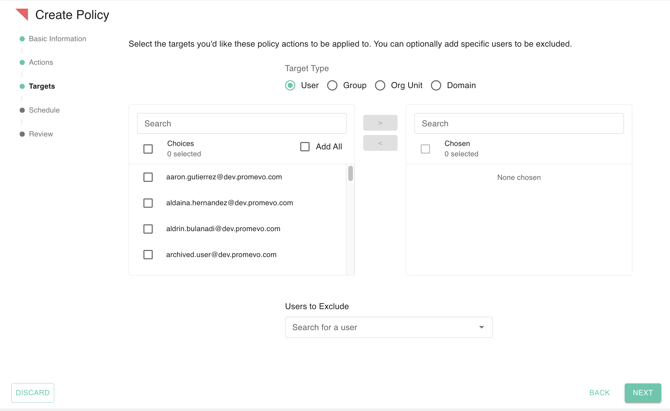
- Define the specific targets (users, groups, organizational units, or domains) that this policy will apply to. Move the targets from the "Choices" list to the "Chosen" column to select. You can also specify users who should be excluded from the policy's actions during this stage.
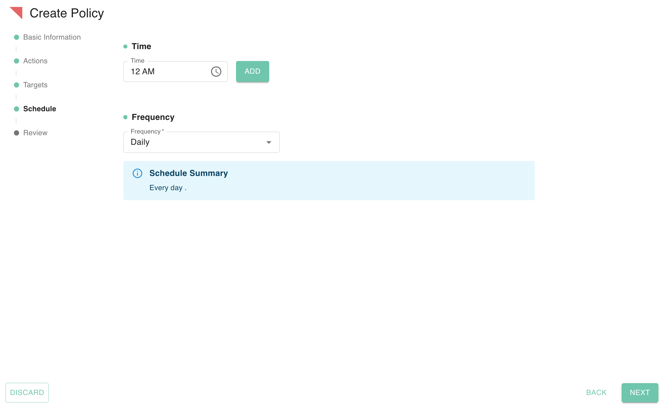
- If you selected a scheduled run, define the frequency and time.
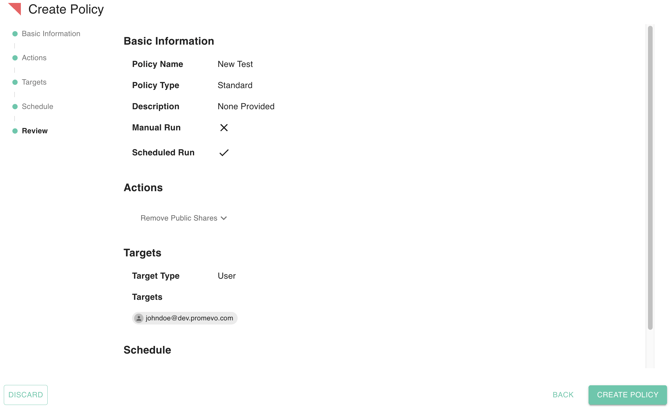
- Carefully review your configured policy to ensure accuracy. Once confirmed, click 'Create Policy' to save your settings.
Managing Existing Policies
-
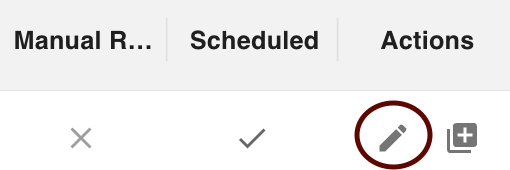
Edit: Click the Pencil (Edit) icon to modify filters or actions as your organizational needs evolve.
-
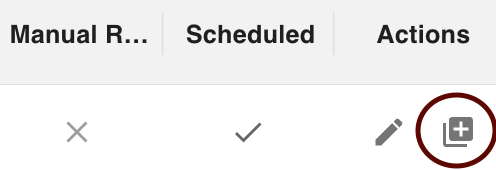
Clone: Use the Clone icon to duplicate a complex policy. This is a massive time-saver when creating similar policies for different departments.
-
Manual Run: Click the Play button to trigger a policy immediately.

-
Delete: Use the Trash icon to remove obsolete policies.

Real-World Use Cases for Administrators
Administrators can solve complex manual workflows with these common gPanel Policy configurations:
-
Zero-Touch Onboarding: Create a New User Creation policy that automatically adds every new hire to the "All-Staff" Google Group, creates a standard "Welcome" Gmail label, and assigns them to their department's Shared Drive.
-
Security Hardening: Set a Scheduled Policy to run daily that "Removes Public Shares" and "Removes Domain Findable Shares." This ensures that even if a user accidentally shares a sensitive document globally, gPanel will automatically revoke that access within 24 hours.
-
Automated Offboarding: When a user is moved to a "Terminated" OU, a policy can be triggered to "Sign Out User," "Disable Two Factor," "Force Password Reset," and "Hide From Directory" simultaneously.
-
Storage & Cleanup: Use the Suspend Inactive Users action to automatically identify and suspend accounts that haven't logged in for 90 days, saving on license costs and reducing the attack surface.
-
Brand Consistency: Enforce "Set Profile Information" and "Set Forwarding" rules to ensure that all customer-facing staff maintain a uniform identity and that emails are correctly routed during departmental shifts.