Contents
View mobile devices
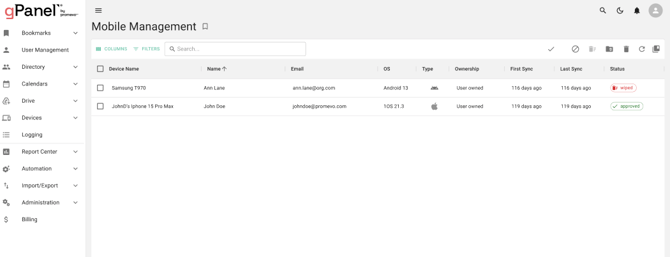
Mobile Management will display a list of mobile devices with the following information:
- Name: This is the user's name whose G Suite data is synced to the device
- Email: The email address of the user
- Device: This is the model name of the device
- OS: This is the name and version of the current operating system on the device
- Type: This is the type of the mobile device
- First Sync: Specifies the first sync date
- Last Sync: Specifies the date when the device was last synced
- Ownership: If owned by the name and email address of the user.
- Status: The status of the device (this can be "approved", "blocked", or "wiping")
Edit mobile device status
Select the mobile device that you would like to edit and choose the action you'd like to take using the icons in the top right of the device window. Below is a description of each action.
Approve
- Description: This action officially grants a device permission to access and sync corporate data and apps from the Google Workspace domain.
- When used: It is used when a device is pending approval (which is the default status if you require admin approval). It tags the device as trusted, which is often a requirement for access policies.
Block
- Description: This immediately revokes a device's access to Google Workspace data and apps. The user is signed out of all Google Workspace mobile apps on that device.
- When used: This is used to temporarily secure data on a device that is lost or has violated policy, or to prevent a device from syncing data. The corporate data remains on the device, but the user cannot sign back in or sync until the device is unblocked.
Remote Wipe (or Wipe Device)
- Description: This is the most extreme action, performing a factory reset of the entire mobile device. All data—both work-related and personal—is removed, and the device is restored to its original factory settings.
- When used: This is primarily used when a device is permanently lost or stolen, or when a company-owned device is being decommissioned or reassigned, to ensure no sensitive corporate data remains accessible.
Remote Account Wipe (or Wipe Account)
- Description: This is a selective wipe that removes only the user's work/school account and all associated corporate data and apps from the device. It leaves the user's personal data, apps, and files untouched.
- When used: This is the standard action for a Bring Your Own Device (BYOD) scenario when an employee leaves the organization or stops using their personal device for work. It protects company data without deleting the employee's personal photos, messages, or apps.
Delete
- Description: This action removes the device record from the GPanel inventory of managed devices. In most cases, the device can no longer sync work data, and the user must sign in again to re-add the device.
- When used: This is typically used to clean up the devices list. Crucially, deleting a device does not remove work data (except for enrolled iOS devices). If the goal is data removal, a Wipe action must be performed instead.

View details of mobile device
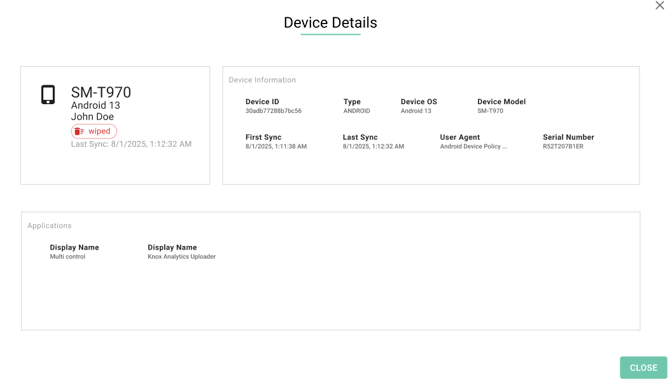
Here you can view general information about the device and the applications installed on the device. This provides a comprehensive overview of your organization's managed hardware, displaying essential information such as the device's serial number, operating system version, asset ID, and its most recent synchronization timestamp.
Administrators can use this view to monitor the security status and physical location of mobile or ChromeOS devices while identifying which specific user is associated with each unit.