
Contents
In an era of high employee turnover and strict regulatory requirements, the ability to preserve communication is essential. The Gmail Export feature in gPanel is a sophisticated forensic tool designed to help administrators enforce company security policies, ensure message continuity, and satisfy legal discovery requests.
By exporting a user’s mailbox into a portable .MBOX format, organizations can maintain a permanent record of interactions even after an account has been suspended or deleted.
Technical Prerequisites
To ensure a successful export, your domain must meet the following criteria:
-
Google Workspace Tier: This feature requires a paid version of Google Workspace. Free editions do not support the underlying protocols.
-
API Access: You must have API Provisioning and the Email Audit API enabled within your Google Admin Console (cPanel).
-
Retention Awareness: Gmail Exports are temporary. They are only available for download for three weeks (21 days) from the date of creation. If the .MBOX file is not downloaded within this window, the export will expire and must be re-run.
Step-by-Step: Creating a Gmail Export in gPanel
-
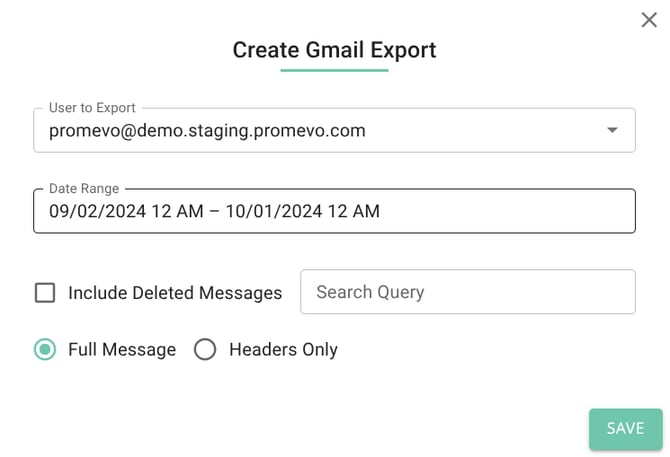
Go to Import/Export > Gmail Export and click the Add Gmail Export icon in the top right corner.

-
In the configuration window, define the following
-
User: Select the specific account to be exported.
-
Date & Time Range: Specify the exact window of communication to capture.
-
Retrieve Deleted Messages: Toggle this "Yes" to include items currently in the user's trash or recovery bin.
-
Export Type: Choose between Full Message (content and attachments) or Headers Only (metadata like sender, recipient, and subject).
-
-
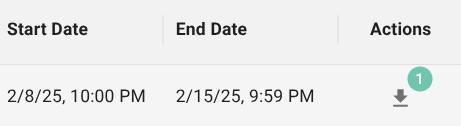
Click Save. The system will begin processing the request. Once finished, click Download to save the encrypted file to your local machine.
Decrypting the Export With Kleopatra
For security, gPanel exports can be encrypted. To view the messages in plaintext, you must use a GPG tool like Kleopatra.
-
Download the Private Key and open Kleopatra.
-
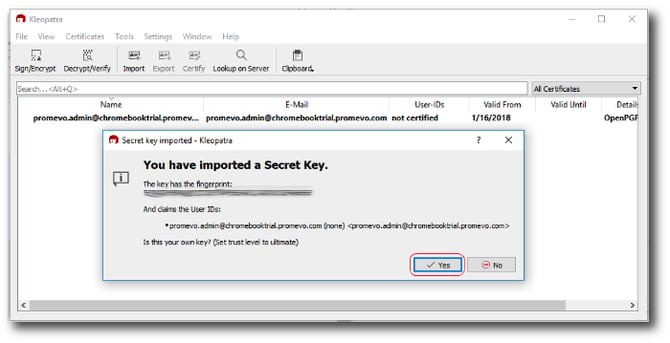
Click Import from the menu and double-click the file you want to import. Confirm ownership when prompted.
-
Kleopatra will prompt with another window simply confirming the key was imported.

-
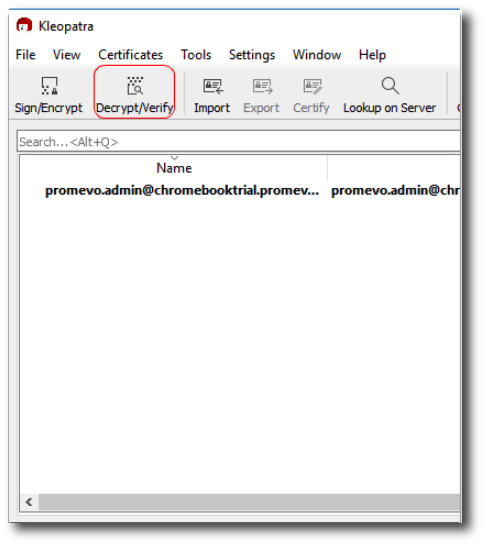
Click the Decrypt/Verify button and select your downloaded .MBOX export.
-
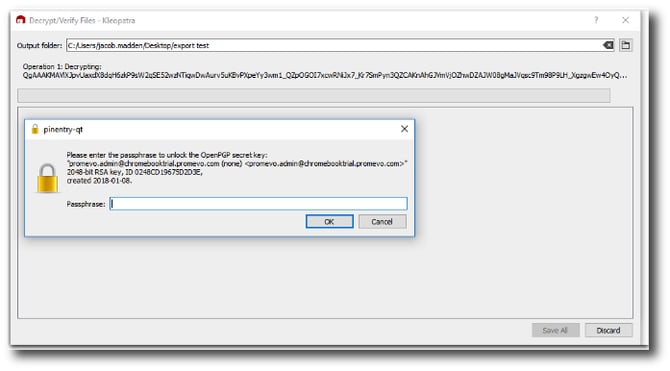
Kleopatra should prompt you for the passphrase which is the password you entered upon creating your Private Key.
-
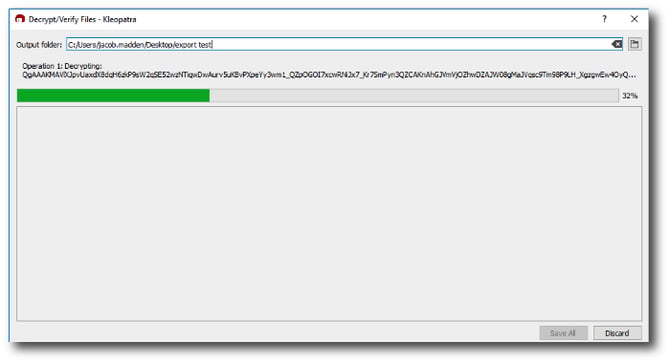
The decryption will start processing.
-
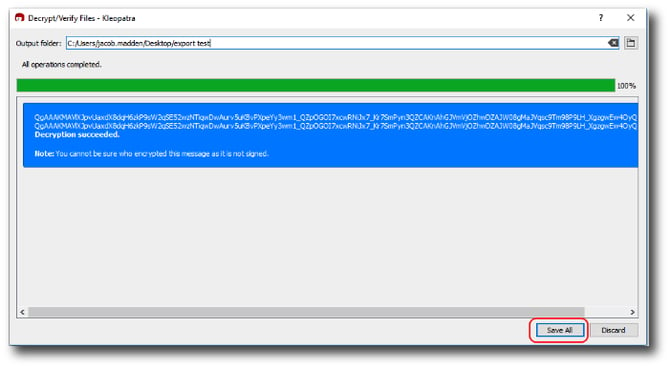
Once completed, click Save All. The output file will be added to the same folder as the original export you downloaded.
-
You will then need to use a .MBOX viewer like Thunderbird to view the files.
-
Once you have installed Mozilla's Thunderbird, you will need to use a third party add-on like ImportExportTools in order to browse the messages as you would an ordinary mailbox.
Note: If the file will not import to your mail client, rename the file with a shorter file name. You may have to add .mbox to the end of the file name to get certain mail programs to view the files.