Contents
Note: You must be a gPanel administrator for your organization in order to set up or edit your domain's billing contacts.
Manage Billing Contacts
- On the left side navigation, hover over the dollar sign and click "Plans & Billing."
-
If you do not see a menu like the one below, you may be currently set as a "User" within gPanel. Ask your domain administrator for administrator access.
-
-
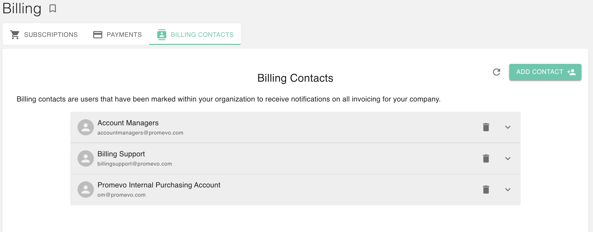
Click the Billing Contacts Tab, In here you will be greeted with the List of Billing contacts/users that will be notified in cases of billing.
Add Billing Contacts
-
Click the box on the right that says "Add Contact"
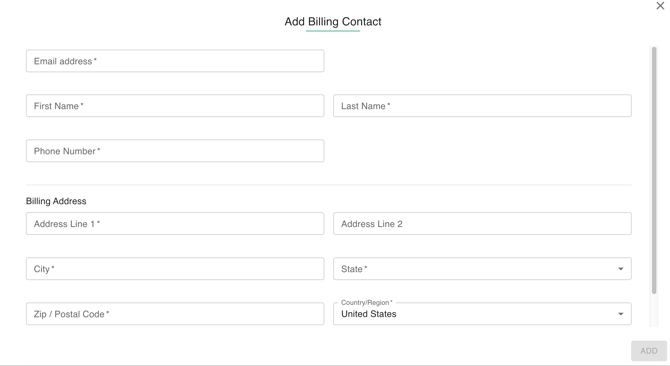
- Add the Billing contact information such as:
- Email Address
- First Name
- Last Name
- Phone Number
- Billing Address Line 1
- Billing Address Line 2
- City
- State
- Zip/Postal Code
- Country/Region
- Check Box: Shipping Address Matches Billing Address
-
Input your information details and click "Add" in the bottom right-hand corner.
These contacts will receive invoices and other billing notifications for your subscription(s).
Delete Billing Contacts
- Select the trash icon.
- Confirm deletion. This will also mean that the email/contact will no longer receive email notifications of the billing subscriptions.