 User Management
 Group Management
 OU Management
 Gmail Management
 Drive Management
 Calendar Management
 Device Management
 Workspace Reporting
 Workspace Automation
 Billing & License Management

Google Workspace: The Ultimate Guide to Managing Devices
 Christine Page : Jun 30, 2023, 5:00:00 AM
To help you make the most of your Google Workspace environment, let's explore the importance of Google Workspace device management.


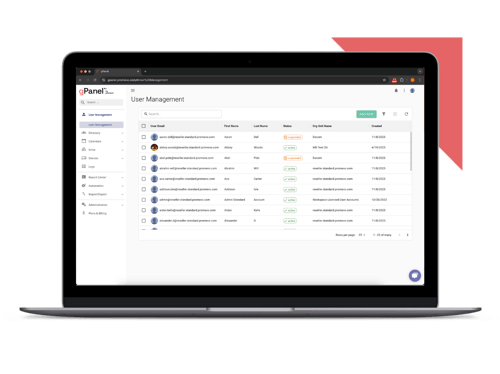
Simplify Google Workspace management with our most essential tools for user and email administration.
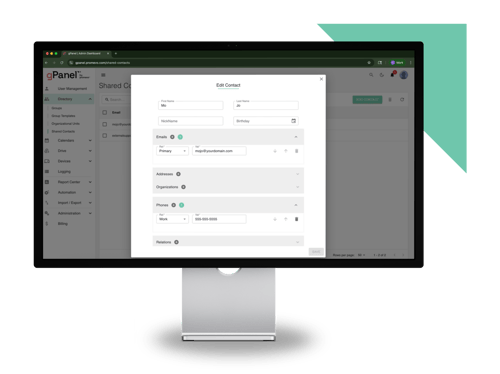
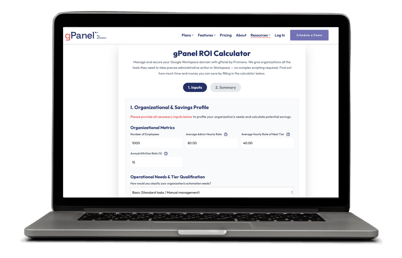
Unlock powerful automation, bulk actions, and reporting features to streamline and scale your admin workflows.
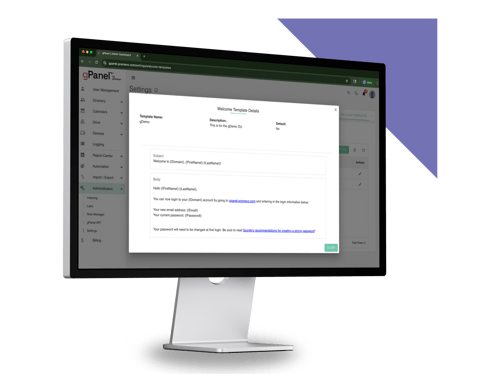
Take full control of your domain with advanced policies, APIs, and security tools built for large or complex environments.

Are you looking for a way to effectively manage the Chromebook devices in your organization? Follow this guide to learn the fundamentals of managing Chromebooks with Google Workspace.
Google Admin console is a powerful tool that can be used to govern all the Chromebooks in your network and their users as well as Google Workspace applications, user access, and security settings for your network's Chromebooks.
By following these steps, you can set up Chromebook management in Google Workspace and effectively manage your Chromebook fleet:
To ensure that your Chromebook fleet is secure and that your users are productive, be sure to follow these best practices for Chromebook management.
The first step in effectively managing Chromebooks is to create effective security policies. These policies should define the acceptable use of Chromebooks, Chrome features, and the security measures that users must follow.
Some important security policies to consider include:
Be sure to implement ongoing training in your organization to help users operate their Chromebooks securely. This training should cover topics such as password security, password management, device encryption, app restrictions, and web filtering.
It's also important to regularly review user and device analytics. This will help you to enforce policies, identify potential security risks, and to take steps to mitigate those risks.
Some important analytics to review include:
Chromebook management refers to the process of managing, controlling, and monitoring Chromebook devices within an organization.
With Google Workspace, IT administrators can manage standalone ChromeOS devices, users, policies, and settings from a centralized Admin console.
To set up Chromebook Management in Google Workspace, you must first sign in to the Google Admin console using your administrator account.
In the console, navigate to "Devices" and then "Chrome management." From there, users can set up various policies and settings for their Chromebooks, such as user settings, device settings, app management, and network settings.
Yes, Google Workspace works on Chromebook. You can access all of your Google Workspace apps and services on Chromebook, including Gmail, Drive, Docs, Sheets, Slides, and more. You can also use Chromebook to access other web-based apps and services.
Here are the steps to access the Device Management page on a Chromebook:
Alternatively, you can also follow these steps:
So in summary, the Device Management page can be accessed either through the Settings menu or by entering chrome://management in the browser address bar on a Chromebook. This page allows you to manage various device-level settings and functions.
Here are some of the main ways Chromebooks can be managed:
In summary, Chromebook management utilizes enterprise management consoles, policy settings, enrollment, and remote controls to configure, restrict, monitor and secure Chrome OS devices centrally.
Here are the steps to change the management on your Chromebook:
You may need to powerwash your Chromebook before enrolling in new management. in summary, go to Advanced Settings > Manage Other People, unenroll the device if currently managed, then enroll in new management as needed. A powerwash first may be required. This will change the management and admin controls on your Chromebook.
Here are a few ways to open the Chrome management page on a Chromebook:

 Christine Page : Jun 30, 2023, 5:00:00 AM
To help you make the most of your Google Workspace environment, let's explore the importance of Google Workspace device management.
 Christine Page : Dec 11, 2023, 12:00:00 AM
Google MDM provides unified enterprise management of iOS, Android & Chrome devices through the Google Admin console.
 Christine Page : Dec 6, 2023, 12:00:00 AM
Google MDM provides robust mobile device management, enabling simplified administration, enhanced security, app management, and integration.