You've been preparing for your presentation for days. Your whole team will be there and you spent hours on your deck, right down to painstakingly finding the just-right gifs to introduce some fun into the process.
On the day of, you show up prepared to launch into it, only to find the room's been double booked. So much for all that hard work. You've wasted time putting together a presentation you can't show, your team has lost time showing up for one that's no longer happening, and no one gets the benefit of your insights (or your killer gif game).
Chances are, your organization already has the tool you need to keep this from happening again. While you know how to use Gmail, Drive, and the basic features of Google Calendar, you may be overlooking the features available for resource scheduling in Google Workspace.
What Is Google Workspace Resource Scheduling?
Google Workspace is already a centralized platform that keeps everyone in your organization connected. But it's not just good for enabling communication and collaboration, you can also use Google Workspace to manage availability and scheduling for your company's physical resources.
That can include — but isn't necessarily limited to — buildings, meeting rooms, company vehicles, and related equipment like projectors, monitors, and navigation systems.
Resource scheduling in Google Workspace gives you an organized way to keep track of any resources that need to be reserved in advance. Moving the scheduling process for these assets within Google Calendar means that every employee can easily see resource availability in real time, and reserve any resources they need in the same place where they organize the rest of their schedule.
How Resource Calendars Work
Within Google Calendar, you can create a resource calendar for each shared resource your company offers. Each resource calendar will then integrate seamlessly with Google Calendar, ensuring that users can easily pull up resource details in a tool they likely already use every day.
Google Workspace's resource calendars provide the functionality to:
- View all available resources within Google Calendar
- See availability details for each resource, along with any secondary resources associated with it (e.g. If a room includes a monitor, or a car includes a navigation system)
- Book reservations for the resource at an available time
- Gain visibility into how often your resources are being used, along with any trends on who is using them and how
Having this functionality built into Google Calendar means employees have easy access to it, while people outside the organization don't — simplifying security concerns. And employees will intuitively know where to look when it's time to book a reservation, keeping the whole process streamlined and easy.
Benefits of Proper Resource Scheduling
Having a centralized platform for resource scheduling can improve planning, efficiency, and asset management at your organization. Used properly, Workspace resource scheduling can:
- Lead to time savings: If reservations previously went through admins that had to manage resource access, moving to a shared resource calendar system takes a lot of work off their plates. And if everyone is able to book reservations at times that are definitely available, you save time dealing with conflicts and the frustrating administrative work of re-scheduling.
- Reduce double bookings: When the same resource gets double booked, it causes problems for multiple parties and creates administrative chaos. A resource calendar that's accessible to everyone and updates in real time helps everyone avoid that eventuality.
- Support collaboration: When everyone can manage reservations without conflict, it helps you avoid friction between teams. You don't want two departments fighting over whose claim to a room or car is more important — that's a recipe for employee dissatisfaction. Shared resource calendars help create a seamless, conflict-free way for people to access the resources they need.
- Improve visibility: An accessible resource calendar doesn't just enable bookings, it also gives employees visibility into what resources they can potentially use. Someone planning a presentation can see what tech resources each room includes, so they know what will be available to them. Plus, admins gain broader visibility into how often employees are using various resources, and whether the organization's current assets are meeting the company's needs.
- Drive data-driven decisions: Greater visibility into resource usage helps you make smarter decisions about resources you should invest more into, or those you can cut down on to reduce costs. If you notice that the room with the projector is more frequently booked than the others, then you know that putting some budget toward buying more is a smart move.
How to Create & Manage Resources in the Admin Console
If you're sold on using Google Workspace for resource management, here’s how to start creating resource calendars. While signed in to an administrator account, navigate in the Google Admin Console to Menu > Directory > Buildings and Resources > Overview.
1. Start with Buildings
Workspace treats buildings as the foundational unit for your resource calendars — your other resources will each be attached to the relevant building. In the Resource Management section, select Open > Manage Buildings > Add new buildings. Then start filling in the details for each building, including the name and address.
Pro tip: If your company has a lot of real estate, you can speed this process up by using the bulk upload feature. You can also use bulk uploads for resources and features.
2. Add Resources
For each building, add all relevant resources that can be reserved, like rooms and vehicles. Think now about how best to handle naming conventions, so it’s easy to intuitively add new resources later. The resources will be attached to a building, so you shouldn't need to specify the building or city in the name, but think about any descriptive features employees would benefit from seeing at a glance, like size information and what floor it's on (e.g. 2nd Floor Conference Room Large Group, or 6-person Group Van).
3. Add Any Relevant Features for Each Resource
Fill in more relevant details about each resource by adding audio, video, or other features included. That could be items like projectors and monitors for conference rooms and navigation systems for vehicles.
4. Share Your Resource Calendars
Once your resource calendars are created, share them with employees and set proper permissions. First, add your resources to your My Calendars list by opening Google Calendar, choosing Other Calendars > Add > Browse resources, then selecting your resource. Then, from the My Calendars list, select your resource and choose More > Settings and sharing. From there, you can specify access permissions and choose whether to share the calendar with everyone in the organization, only specific individuals, or select organizational units.
Best Practices for Booking & Approving Resources
Having your resource calendars set up and accessible to your employees is a big step. But you also want to establish strong policies and make use of Google Calendar's features to make the reservations process as smooth as possible.
- Educate employees on booking expectations: To reap the benefits of a centralized platform for resource scheduling, your employees have to commit to using it. For that, everyone needs clear instructions on how to access and use the resource calendars, along with any rules or guidelines they should follow when doing so. It may take people some time to get used to a new system, so consider sending reminders beyond your initial communications on the subject.
- Configure auto-accept rules for meeting rooms: If you want to skip the step of having an admin approve each reservation, you can automate the process of accepting bookings. In the Settings and sharing section, select the option "Auto-accept invitations that do not conflict." Then any time an employee requests a reservation at an available time, their event will automatically be added to the resource calendar. If they're attempting to set up a recurring event, the resource calendar will only accept if most the requested times are available, and auto-decline the times it's not.
- Managing recurring bookings and conflicts: Recurring bookings are valuable for making it easy to schedule regular meetings, but they increase the likelihood of conflicts. Consider whether you want to create guidelines around who's authorized to set up recurring bookings, and whether there are in-demand resources where this option should be discouraged. While there's not a way to place limitations on recurring bookings within Workspace, you can potentially limit use of this feature with a mix of clear communication and limiting permissions for who can make reservations.
- Use event details and descriptions for clarity: You don't want the calendar to fill up with events with only vague or fuzzy details. Let employees know what information they're expected to provide when making a booking. That could include a descriptive name for the event, information on who should attend, and a basic agenda on what the event is expected to cover. You can use Workspace settings to control whether users can see event details once resources are booked, or if they only see availability information.
Common Challenges for IT Admins
Setting up resource scheduling in Google Workspace can solve some of your problems, but you're still likely to face a few challenges you should aim to be prepared for. Some issues that may arise include:
Ghost Bookings
Things don't always go as planned, and sometimes that applies to resource reservations. A planned meeting may not have enough RSVPs to move forward, or maybe the group decides to move to virtual to include traveling colleagues. For whatever reason, a certain number of ghost bookings is inevitable.
But too many, and it can wreak havoc on your resource availability. Encourage employees to be rigid about canceling reservations when plans change. And keep an eye on recurring bookings — when set up to be ongoing, they can become a common culprit for ghost bookings.
Resource Ownership Changes
Sometimes people leave or change positions in the organization, and it can be all too easy to forget something like transferring ownership of a resource calendar in the process. But you need an admin to maintain access to your resource calendars, even through employee turnover.
Make transferring resource calendars part of the offboarding process, so you don't risk losing events and reservations when an employee leaves.
Security & Governance Considerations
You may not want to make every resource available to every employee. With some resources, you need to consider security concerns, such as if sensitive materials are stored in the room. And for resources that are especially high value or in demand, you may want to place limitations on who can reserve them.
For example, you might not want to trust just anyone in the organization with a vehicle that would be costly to replace, so that could be a resource where you turn off the auto-accept feature.
Getting specific in the permissions you set up for select resources can help you put some protections in place, and monitoring bookings to keep an eye out for security concerns can help you further reduce risk.
How gPanel Helps Admins Simplify Resource Management
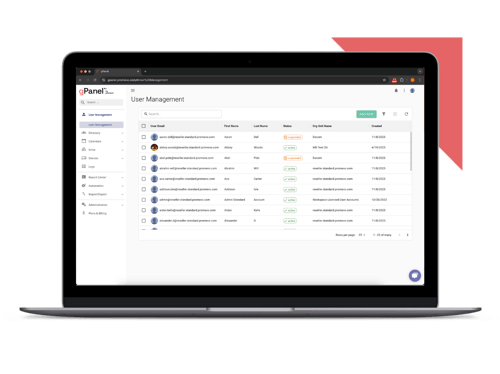
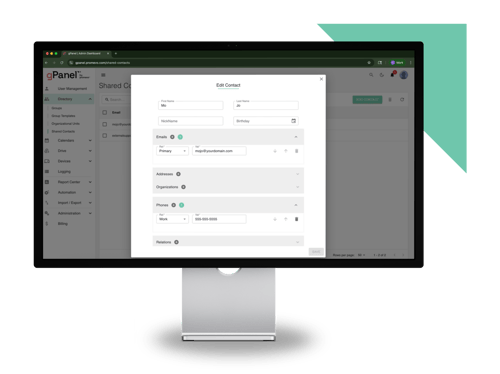
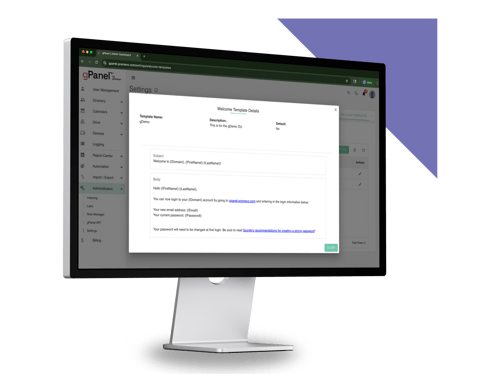
Google Workspace can be a powerful tool for helping you manage resource scheduling in an organized way, but it still has limitations. By pairing Workspace with gPanel, you can further simplify your organization's resource scheduling processes. gPanel by Promevo helps you achieve:
- Greater visibility: In one centralized view, you can easily see all your resources, who’s booking them, and when and how they're using them. That can help you better track usage trends, identify users prone to overbooking or ghost bookings, and spot potential conflicts before they become a problem.
- Auditing features: gPanel gives you the ability to audit permissions and bookings across multiple users and groups. If you identify an issue with how employees are handling a reservation, you can manage permissions at the admin level to step in and take action as needed.
- Reporting features: Set up automations and run reports that enable you to efficiently identify resources that have been overbooked, as well as any that are underused. When you know how employees are using resources, you can make smarter decisions about the types of resources you should invest more in, and any you can decommission, sell, or look for ways to improve.
Better Resource Scheduling with Google Workspace
Managing resource scheduling and access is one of many tasks IT admins have to juggle. You want to ensure employees have the access they need to company resources to do their jobs effectively, without it costing IT any more work and time than necessary.
Using the combo of Google Workspace and gPanel can make things easier on you and other employees alike. You gain control over managing resource calendars, can set permissions, and gain visibility into how employees are using the resources.
Meanwhile, employees gain an efficient, intuitive process for determining availability and reserving resources. You can reduce the conflict of double bookings, and keep all these functions centralized in one main view. It’s a win-win for all involved.
If you haven't tried gPanel yet to see all the extra functionality it can unlock in Google Workspace, it's a good day to start.




 User Management
 Group Management
 OU Management
 Gmail Management
 Drive Management
 Calendar Management
 Device Management
 Workspace Reporting
 Workspace Automation
 Billing & License Management


 Colin McCarthy

 Colin McCarthy : Dec 4, 2025, 5:00:01 AM