Decommissioning Google Workspace accounts isn’t just an IT cleanup task. When someone leaves, changes roles permanently, or no longer needs access to your environment, their account needs to be decommissioned. Proper account decommissioning protects your data, keeps your licenses under control, and closes security gaps before they become problems.
If you handle account decommissioning poorly, though, it could leave access open, scatter sensitive data, and create compliance risk you don’t see until later.
This guide walks through how you should think about decommissioning, how you complete it inside the Google Admin Console, and how you streamline the entire process with gPanel so nothing gets missed.
Why Decommissioning Matters More Than You Think
Every active Workspace account represents access to your organization’s data. Email, Drive files, shared calendars, internal conversations — everything ties back to user accounts.
When someone leaves, that access needs to change immediately. Not later. Not after a review. Immediately.
You decommission Google Workspace accounts to:
- Prevent former employees from accessing company data
- Protect sensitive files, emails, and shared resources
- Maintain compliance with internal and external policies
- Reclaim licenses and reduce unnecessary cost
- Keep your environment clean and predictable
The goal isn’t just removal. The goal is control over what happens to data and access after someone exits your organization.
What You Should Do Before You Start Decommissioning
Decommissioning users from your Workspace domain works best when you treat it as a controlled process, not a single action.
Before you remove anything, you need clarity on what the account touches.
Start by reviewing how the account is used:
- Identify ownership of Drive files and shared documents
- Review group memberships and access roles
- Check email usage patterns and shared inboxes
- Look for connected apps or third-party integrations
This step matters because most accounts don’t exist in isolation. They connect to teams, workflows, and shared resources.
Once you understand the footprint, you prepare the data you want to keep. That often includes:
- Email archives for compliance or reference
- Drive files that need to be reassigned
- Calendar events tied to teams or projects
- Contacts or shared resources
You don’t want to lose this information. You want to transfer or preserve it before you remove access.
Decommissioning in the Google Admin Console
The Google Admin Console gives you the native path for removing users. It works, but it requires you to manage each step manually.
You typically move through this sequence.
-
User Suspension
You start by suspending the user. This immediately blocks access to Gmail, Drive, and other Workspace services while you prepare the rest of the process. Suspension gives you time to clean up data without the risk of ongoing access.
-
Ownership Transferral
You will want to transfer ownership of important assets. Drive files, shared documents, and other resources need to move to another active user. If you skip this step, you risk losing access to critical organizational data or leaving files orphaned.
-
Data Exporting
You then handle data export if your organization requires archiving. Google provides export tools that let you preserve emails, files, and other user data. This step often depends on compliance requirements or internal retention policies.
-
Group Permissions
It is wise to remove the user from groups and revoke any remaining permissions. This ensures the account no longer holds access through indirect paths like shared drives or group-based permissions.
-
Total Deletion
Finally, you delete the user account when you’re ready to permanently remove it. This action removes access and clears the account from your environment. Once completed, you cannot recover the user or their data unless it was previously exported or transferred.
This process works, but it requires precision. Every step depends on the one before it, and missing one detail creates gaps in access or data retention.
It’s more than a series of IT switches to flip — management and team need to be ready to adjust, too.
Where Manual Decommissioning Breaks Down
The Admin Console gives you control, but it doesn’t give you structure. You may run into issues when:
- You repeat the same steps for every user without standardization
- You rely on memory or checklists for each offboarding event
- You handle bulk decommissioning across multiple users
- You manage multiple systems outside Workspace that also require updates
The risk increases with scale. One missed transfer or forgotten permission creates downstream problems.
You also lose time. Each decommissioning event becomes a manual project instead of a repeatable process.
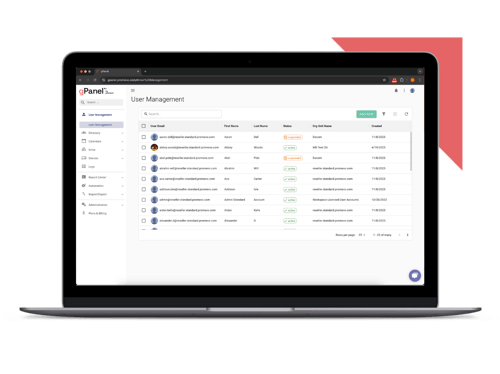
Google Workspace Decommissioning in gPanel
gPanel changes decommissioning from a manual sequence into a defined workflow.
Instead of handling each step separately, you define a decommissioning policy once and apply it consistently across users.
You control what happens from the moment an account is flagged for removal.
Build a Decommissioning Policy That Matches Your Organization
You start by defining what decommissioning should look like in your environment.
That can include actions like:
- Suspending the user account immediately
- Transferring Drive ownership based on rules you define
- Forwarding emails to a manager or shared inbox
- Removing group memberships automatically
- Revoking access to connected services
- Archiving or deleting data based on retention policies
You don’t rebuild this process each time. You apply it consistently across every user.
Automate the Entire Process
Once your policy exists, gPanel handles execution.
When a user is marked for decommissioning, the system applies every configured action in sequence. You don’t need to track steps or switch between tools.
This removes the risk of missed actions and reduces the time it takes to complete offboarding.
Apply Consistency Across Every User
One of the biggest risks in manual decommissioning is inconsistency. Different admins handle steps differently. Some skip actions. Others reorder them.
With gPanel, every user follows the same process. That consistency improves security and makes audits easier.
Connect Decommissioning to Your Systems
Decommissioning often starts outside Google Workspace.
The gPanel API lets you connect external systems like HRIS and CRM platforms directly to your offboarding process.
When human resources marks an employee as terminated, that change can trigger decommissioning automatically. You don’t need to wait for IT to act on a ticket.
This reduces delays and ensures access gets removed at the right time, not after a manual handoff.
Extend Control With Rules Engine
Not every offboarding process looks the same. Some users require full deletion. Others require extended retention or restricted access.
The Rules Engine lets you define logic that adapts to those scenarios.
You can trigger different decommissioning actions based on:
- Department or role
- Location or organizational unit
- Employment type or status
- Custom attributes tied to the user
This gives you flexibility without losing structure.
What Happens After Decommissioning
Decommissioning doesn’t end when the account disappears. You still need to maintain control over your environment.
You should:
- Review access policies regularly to ensure they still match your organization
- Monitor shared resources for orphaned permissions
- Audit changes to confirm decommissioning completed correctly
- Update internal documentation so processes stay consistent
This keeps your environment clean over time instead of reacting to issues later.
FAQs: Decommissioning Google Workspace Accounts
- What happens when you delete a Google Workspace account?
You permanently remove access to Gmail, Drive, Calendar, and other services. The associated data is deleted unless you transferred or exported it beforehand.
- What is the difference between suspending and deleting a user in Google Workspace?
Suspending blocks access while preserving data. Deleting permanently removes the account and its data from your environment.
- What actions should you take before decommissioning a user?
You should review file ownership, transfer critical data, remove access from shared resources, and identify any connected systems.
- Can you automate decommissioning in Google Workspace?
Not natively at scale. However, tools like gPanel let you automate the process through policies, rules, and integrations.
- How do you reduce risk during offboarding?
You standardize the process, remove access immediately, and ensure every step runs consistently through automation instead of manual execution.
Take Control of Decommissioning
You don’t need to manage offboarding step by step every time someone leaves. You need a system that handles it consistently.
gPanel lets you define decommissioning once, apply it automatically, and extend it across your entire organization.
You reduce risk. You save time. You close gaps before they become problems.
If you want to see how it fits into your environment, schedule a gPanel demo and walk through your decommissioning process in real time.




 User Management
 Group Management
 OU Management
 Gmail Management
 Drive Management
 Calendar Management
 Device Management
 Workspace Reporting
 Workspace Automation
 Billing & License Management


 Brandon Carter

 Brandon Carter : Jan 20, 2026, 5:00:00 AM