Do you find yourself scrambling to track down files when someone leaves your organization? You’re not alone.
File ownership in Google Drive often stays invisible until it breaks something critical.
Ownership defines control. It determines who governs access, who carries storage responsibility, and whether your data survives transitions like offboarding, restructuring, or audits. When you don’t manage it intentionally, you risk lost files, compliance gaps, and stalled collaboration.
You need a system, not a scramble.
 Most organizations approach Drive ownership transfers in one of four ways:
- Handle transfers manually for small, isolated cases
- Use the Admin console for full-account transfers
- Shift to Shared Drives to avoid individual ownership
- Automate everything with a platform like gPanel
Each option solves part of the problem. Only one gives you full control across your domain.
What matters most is consistency. You need a repeatable process that runs every time a user changes roles, leaves, or hands off work. Without that, ownership becomes reactive, and reactive always turns into risk.
What Does File Ownership Actually Mean in Google Drive? 4 Key Elements to Consider
Ownership is the "root" of a file’s lifecycle in Google Workspace, determining everything from storage quotas to final deletion rights. Before moving data, you must understand these four pillars that govern who truly controls your organization's digital assets.
Google Drive ownership goes deeper than access. It controls how files behave across your entire environment.
Here’s how Drive permissions break down by role:
Ownership directly ties to storage. The owner’s account absorbs the file size, not the editors or viewers. If you transfer ownership, you also transfer storage responsibility. That matters when users approach quota limits.
For personal Google accounts, ownership transfers require acceptance. The recipient must approve the change before it takes effect. Inside Google Workspace, transfers complete without that step in most cases, which simplifies administration.
Google restricts ownership transfers to users within the same Workspace domain. You can’t transfer ownership to a personal Gmail account or an external domain directly. That creates friction during vendor transitions, partnerships, or M&A activity.
The 10 Most Common Scenarios That Require a Google Drive Ownership Transfer
Ownership transfer should never feel like a one-off task. It should trigger automatically based on real business events.
.png?width=502&height=444&name=gPanel%20Mockup%20for%20Drive%20Transfer%20Blog%202%20(1).png) Here are the scenarios you need to plan for:
Here are the scenarios you need to plan for:
- Employee offboarding: You must transfer ownership before you suspend or delete an account. If you don’t, files risk becoming inaccessible or orphaned.
- Role or department changes: When responsibilities shift, ownership needs to follow. Otherwise, the wrong person controls critical documents.
- Contractor or vendor project handoffs: External collaborators often create files tied to their accounts. You need to bring those files back under internal ownership.
- Account deletion before transfer: If you delete first and think later, you create orphaned files that require recovery steps.
- Compliance and data retention requirements: Industries like finance, healthcare, and education demand clear ownership tracking for audits and legal holds.
- Team or department restructuring: When teams merge or split, ownership needs to reflect the new structure.
- Project ownership reassignment: Projects evolve. Ownership should move with accountability.
- Mergers & acquisitions (M&A): You inherit entire environments. Ownership chaos comes with them unless you standardize quickly.
- Storage quota management: Heavy users can overload storage. Transferring ownership helps rebalance usage.
- Shared resource consolidation: You may want key documents owned by a central account instead of individuals to prevent fragmentation.
The Pre-Transfer Checklist: 4 Critical Steps to Avoid Data Loss
You don’t want surprises mid-transfer. A quick checklist protects you from avoidable issues:
- Empty the trash: Deleted files still count during transfer processes. Clear trash to avoid unnecessary data movement and confusion.
- Check storage limits: The destination account must have enough storage to accept incoming files. If not, transfers can fail or stall.
- Suspend, don’t delete: Always suspend accounts first. Suspension preserves data and gives you time to transfer ownership cleanly.
- Audit file access and sharing: Review who has access before transfer. You don’t want to carry over risky or unnecessary permissions.
Your 5 Options for Transferring Google Drive Files (& Where Each One Falls Short)
As a Workspace administrator, you have several paths. Each one works under specific conditions:
- Manual Transfer Through Google Drive
The most basic method involves a manual change of ownership within the Google Drive interface, where a user or admin simply updates a collaborator’s status to "Owner."
While this works for isolated cases where a single document needs a new lead, it breaks down immediately when applied at scale. Google doesn’t allow for the manual ownership transfer of entire folder structures, only individual files.
This method also requires the original owner to be active to initiate the change, making it an ineffective solution for offboarding employees who have already left the company.
- Bulk Transfer Via The Google Admin Console
For a more comprehensive move, administrators often turn to the bulk transfer tool within the Google Admin Console to sweep all files from one user to another.
This approach is ideal for total employee offboarding where you want to preserve an entire Drive’s worth of data, but it suffers from a total lack of flexibility.
Because it is an all-or-nothing action, you cannot filter by file type, date, or folder. This often leads to "data dumping," where the recipient is saddled with thousands of private or irrelevant documents that clutter their workspace and create organizational headaches.
- Using Shared Drives Instead of Individual Ownership
Many organizations attempt to bypass ownership issues by moving departmental assets into Shared Drives, which shifts ownership from the individual to the organization itself.
While this is an excellent strategy for ongoing collaboration, it doesn’t easily solve the problem of legacy data sitting in personal "My Drive" folders.
Manually moving thousands of existing files into Shared Drives is a significant administrative burden, and IT teams must still contend with Google’s strict technical limits regarding the number of items and nested folders allowed within a single Shared Drive.
- Copying Files To A New Account
In some instances, users try to "transfer" ownership by simply creating a copy of a file in a new location.
This is the most problematic option for data integrity because it immediately creates version control issues and doubles the organization’s storage consumption.
Most importantly, a copied file is a "clean slate" that loses the original document’s entire version history, as well as all existing comments and suggestions, often stripping away the context and collaborative effort that went into the work.
- Third-Party Tools & Scripts
Technically-minded IT teams sometimes utilize command-line tools like Google Apps Manager (GAM) or custom scripts to move data across the domain.
While these offer more power than the standard interface, they often lack a user-friendly GUI, real-time visibility, and robust audit capabilities. A single syntax error in a script can cause widespread permission issues that are difficult to undo, making this a risky choice for organizations that require a high degree of security and transparency.
- Automated Transfers With gPanel
gPanel is designed to bridge the gap between "all-or-nothing" console transfers and "one-by-one" manual steps by giving administrators granular control over the entire process.
Instead of moving every file, you can choose exactly what to transfer based on specific criteria like file age or type, and even automate the timing of these transfers to coincide with account suspension.
By using rule-based "Search & Sweep" workflows, you can automatically identify and reassign orphaned files or documents owned by specific roles, ensuring your domain stays organized and secure without the need for constant manual intervention.
Stop Doing Ownership Transfers One File at a Time (Try gPanel Instead)
You don’t need to babysit file ownership anymore. gPanel gives you:
- Visibility across every Drive file in your domain
- Control over exactly what moves and when
- Automation tied to real user lifecycle events
- Reporting that shows you every change
You move from reactive cleanup to proactive management. That shift saves time and eliminates risk.
If you manage more than a handful of users, manual methods won’t keep up. You need automation that works at scale.
Ready to learn more? Book a demo with our team today.
Google Admin Console vs gPanel: Bulk Ownership Transfer Made Simple
While the Google Admin Console provides basic bulk transfer tools, it often lacks the precision and filtering needed for complex migrations. This comparison shows how gPanel offers the surgical control and automation required to make high-volume data transfers simple and error-free.
|
Capability
|
Google Admin Console
|
gPanel
|
|
Bulk ownership transfer
|
All-or-nothing transfer of entire user Drive
|
Selective bulk transfer across individual files, folders, or full accounts
|
|
Visibility into domain files
|
Limited to basic admin views
|
Full domain-wide Drive visibility in a single dashboard
|
|
Orphaned file detection
|
No dedicated reporting
|
Automated detection and reporting of all files without an active owner
|
|
Ownership transfer filtering
|
No filtering, transfers everything at once
|
Filter by owner, file type, folder, or inactivity before transferring
|
|
Offboarding workflow integration
|
Manual process requiring multiple steps
|
Automated ownership transfer triggered by account suspension or deletion
|
|
Transfer to custodian accounts
|
Not supported natively
|
Assign files directly to a centralized custodian or legal hold account
|
|
Audit logs and transfer history
|
Basic Admin Console logs
|
Detailed logs showing who initiated each transfer, when, and which files were affected
|
|
Scheduled Drive audits
|
Not available
|
Schedule recurring audits to proactively identify ownership issues
|
|
Handling of orphaned files post-deletion
|
Requires restoring deleted account
|
Reassign orphaned files directly without restoring the former user account
|
|
External ownership transfer support
|
Cannot transfer to users outside the domain
|
Manages and flags external ownership issues with clear admin controls
|
|
Notification and reporting
|
Email notification to both parties only
|
Configurable reporting with admin-level visibility into all transfer activity
|
|
Scalability
|
Limited by manual workflows
|
Built to handle hundreds of accounts in minutes
|
Top 5 gPanel Tools That Give IT Admins Real Control Over Google Drive Ownership
Realistically, as an IT admin, you don’t just need transfer capability. You need insight and control across the entire user lifecycle. Here’s how gPanel can help:
- Drive Search & Sweep
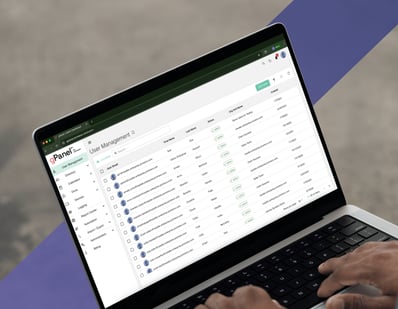
One of gPanel’s most powerful features is Drive Search & Sweep, which allows administrators to perform domain-wide searches for files based on highly specific metadata.
Rather than clicking through individual user profiles, you can identify files based on their creation date, file type, or current sharing permissions.
Once identified, you can "sweep" these files to a new owner or move them into a secure Shared Drive in bulk. This is particularly useful for reclaiming "orphaned" files (documents left behind by deleted users that are still taking up storage or floating in a permissions limbo).
- Rule-Based Automation & The Rules Engine
The gPanel Rules Engine transforms Drive management from a reactive task into a proactive one. Admins can create "if-then" workflows that trigger ownership changes automatically based on user lifecycle events.
For example, you can set a rule that as soon as a user is moved to a "Departing Employees" Organizational Unit (OU), all their Drive ownership is automatically transferred to their manager or a designated service account.
This ensures that critical business data is never left without an owner and eliminates the manual checklist typically required during employee offboarding.
- Scheduled Drive Audits & Reporting
Scheduled audits in gPanel go beyond simple visibility; they serve as an automated compliance monitor. You can configure gPanel to generate and email reports on a weekly or monthly basis that highlight specific ownership risks, such as files owned by suspended accounts or documents with "Public on the Web" permissions.
By automating these reports, IT teams can identify and fix ownership anomalies in real-time. This turns "reacting late" to a data leak into "catching issues early" by ensuring that the right people always have the right access to the right files.
- Granular Decommissioning Policies
When it’s time to retire an account, gPanel’s decommissioning tool provides a structured, multi-step wizard that handles ownership transfers as a core requirement.
Unlike the native Google Admin Console, which often places an offboarded user’s entire Drive into one folder, gPanel allows you to be surgical. You can choose to transfer only specific folders to certain individuals while archiving the rest.
This prevents the "information overload" that typically occurs when a new manager inherits thousands of disorganized files from a predecessor, keeping the transition clean and efficient.
- Drive Explorer
Managing ownership within Shared Drives can be surprisingly difficult in the native Google interface, but gPanel’s Drive Explorer provides a centralized dashboard for every Shared Drive in your domain.
From this single view, admins can see who has "Manager" or "Content Manager" access across all drives and adjust those permissions in bulk. This is essential for maintaining "Organizational Ownership," as it allows IT to quickly reassign leadership roles within a Shared Drive if a project lead leaves, ensuring that the team never loses its ability to manage its own content.
Case Study: How gPanel Facilitated Auberge Resorts Collection’s Total Transfer to Google Workspace
Auberge Resorts Collection needed to modernize how it managed data, users, and collaboration across a growing international footprint.
Their existing systems relied on fragmented infrastructure, local storage, and disconnected communication tools, which created operational friction and limited visibility into critical business data.
As the company expanded, these challenges became harder to ignore. Managing multiple domains, onboarding new employees, and maintaining consistent access to files required significant manual effort from a small IT team.
At the same time, the organization needed a more scalable, cloud-first approach that could support long-term growth without increasing complexity. So, they pursued a Google Workspace migration with Promevo and adopted the gPanel platform for more advanced Workspace administration.
gPanel’s Solution
- Delivered centralized visibility into user data, permissions, and file ownership across the entire domain
- Enabled IT to manage users, policies, and file access from a single interface
- Supported automated onboarding and administrative workflows to reduce manual effort
- Strengthened control over organizational data through improved governance and oversight
- Equipped IT with tools to monitor, manage, and secure files at scale
- Implemented structured user and data management policies across teams
End Results
- Simplified onboarding so new users could access files and systems immediately
- Increased visibility into organizational data across locations and teams
- Reduced reliance on manual processes and legacy infrastructure
- Created a scalable foundation that supports ongoing growth and collaboration
9 Questions You Need Answered About Google Drive Transfer Ownership
Moving file ownership involves technical nuances — like what happens to version history and external sharing — that can disrupt workflows if misunderstood. We’ve compiled the nine most critical questions to ensure your next data transfer is seamless and secure.

- Can gPanel transfer ownership of files whose original owner account has already been deleted?
Yes. You can reassign orphaned files without restoring the deleted account.
- How does gPanel handle ownership transfers during automated offboarding?
It triggers transfers automatically based on custom policies that you set up for your organization. You can trigger transfers based on account status changes like suspension or deletion.
- Can gPanel transfer ownership across multiple users at the same time?
Yes. You can process bulk transfers across many users in a single workflow.
- Does gPanel maintain folder structure when transferring ownership?
Yes. File and folder hierarchy remains intact during transfer.
- How does gPanel identify files that need ownership attention before a problem occurs?
While gPanel can’t identify risks for you, its comprehensive reporting and activity logs allow admins to surface risks early.
- Can gPanel assign transferred files directly to a custodian or legal hold account?
Yes. You can route files to centralized accounts for compliance and governance.
- How do audit logs in gPanel support compliance during ownership transfers?
You get detailed records of every Drive ownership transfer, including who initiated it and when.
- Does gPanel integrate with existing Google Workspace offboarding workflows?
Yes. It works alongside your current processes and enhances them with automation.
- Can gPanel help manage external ownership risks?
Yes. It helps you find and manage files owned outside your domain.
Ready to Simplify Google Drive Ownership Management for Good?
 You don’t need more manual steps. You need control, visibility, and automation that works at the pace your organization moves.
gPanel helps you eliminate human error, protect your data, and manage ownership across hundreds of users without chaos.
If you’re ready to stop chasing files and start managing your environment with confidence, it’s time to see gPanel in action.
Schedule a demo and take control of your Google Workspace.
 User Management
 Group Management
 OU Management
 Gmail Management
 Drive Management
 Calendar Management
 Device Management
 Workspace Reporting
 Workspace Automation
 Billing & License Management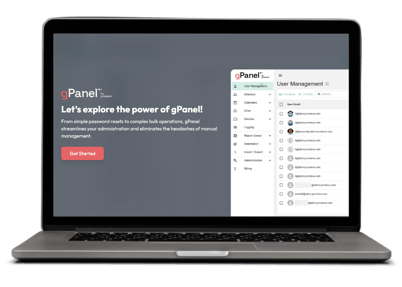

 Colin McCarthy : Apr 17, 2025, 5:00:00 AM