 User Management
 Group Management
 OU Management
 Gmail Management
 Drive Management
 Calendar Management
 Device Management
 Workspace Reporting
 Workspace Automation
 Billing & License Management

1 min read
Tips for Managing Dormant & Orphaned Files in Your Google Workspace Domain
 Colin McCarthy : Jan 29, 2026, 5:00:01 AM
Remote collaboration. Hybrid schedules. Distributed teams.


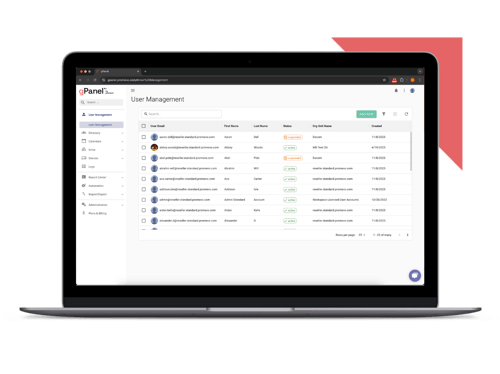
Simplify Google Workspace management with our most essential tools for user and email administration.
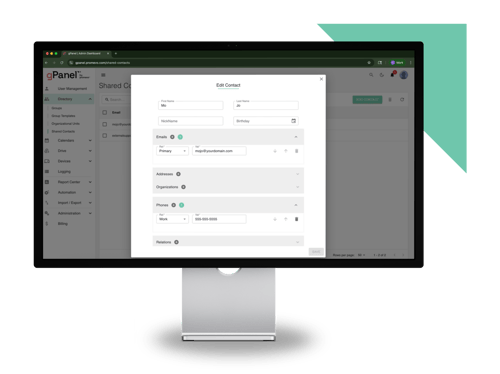
Unlock powerful automation, bulk actions, and reporting features to streamline and scale your admin workflows.
Take full control of your domain with advanced policies, APIs, and security tools built for large or complex environments.

Thank goodness the days of messy filing cabinets and desks littered with stacks of papers are (mostly) behind us.
Managing digital files and folders is much easier, cleaner, and more secure than dealing with paper. But if you work at a large or growing business that uses Google Drive, you've probably seen how digital file management can get out of control too.
If anyone at your organization has wasted time digging through Google Drive folders to try and find the right file, struggled to figure out which version of a file is the most up-to-date (or worse, lost access to an important file completely when a co-worker left the company) you're probably past due to develop a top-down strategy for Google Drive organization.
Managing Google Workspace shouldn't feel like a treasure hunt. A standardized Drive strategy ensures your team spends time doing work, not looking for it.
- The Promevo TeamWhile individuals within your organization may have each figured out their own organizational strategy for Google Drive, that kind of scattershot approach still leaves a lot of room for problems.
Creating a Google Drive management strategy at the organizational level is an important step in making sure that your team can consistently access the files they need to do their job and that your Drive data stays secure.
In particular, developing clear guidelines for Google Drive organization can help with:
A smart Drive folder structure won't just help you bring better organization to your workspace today, it also supports scalability. If each individual or department in your organization develops their own system (or tries to work without one), confusion and errors are inevitable. By clarifying standardized processes at the top, you can create a clean, secure system designed to seamlessly grow with your organization.
A few steps to help you get started right with Google Drive organization are:
Having a standardized process for creating and using shared folders can help you manage access permissions more efficiently and intuitively, while also providing each department and team clear instructions on how to keep files organized.
The details of how best to organize your folders will depend on your organization's setup and particular needs. At many large organizations, that could mean having a primary shared folder for each department (e.g. one for HR, IT, marketing, etc.), along with specific subfolders for any departments or organizational units that fall under each one.
Meanwhile, an agency may want to establish shared folders for each client, with subfolders within for each of the different projects and/or services relevant to the client.
Google Workspace lets you set access at the folder level, which means you can make sure the right people have access to a set of relevant files in one step, rather than having to manage permissions manually for every file.
Each new hire can immediately gain access to the information they need to do their jobs by simply being added to the relevant department file. And when someone leaves, removing their access can happen in one fell swoop, rather than requiring a lengthy and tedious process.
This is especially valuable for departments that need access to sensitive data to do their jobs effectively, like HR and accounts payable. You can ensure employees in specific roles can pull up the files they need to get their work done — even when those files include sensitive data — without creating unnecessary security risks.
If everyone is left to their own devices when naming files, you'll end up with a lot of variety and inconsistencies in file names. What's intuitive and obvious to one person won't be to everyone else. You don't want employees struggling to find a file because the filename a co-worker came up with doesn’t include any of the keywords they think to search.
Think about what naming conventions will make sense across the organization. Clarify what employees should include in each file name and in what order. You may want to include some variation of the following in your file names in a pre-established order:
If you’re worried including all the important information will lead to unwieldy file names, you might want to re-think your folder structure. Good folder organization can lead to shorter, more intuitive file names. You won't have to include as much information in the file name itself if your folders are doing some of the work.
For example, if a file will only be used by the HR department and it lives in that folder, you won't need to include the department name in the file itself.
Data security is another key factor to keep top of mind in your Drive organization strategy. Without clear guidelines, some employees will default to making files available to "anyone with the link" — an option that makes sharing files with colleagues (within and outside the organization) easier, but that introduces security risks.
"34.2% of Google Drive business files are shared externally. There are a lot of cases where external sharing is beneficial... but it's imperative that employees are intentional about which files are shared externally, and cautious about who they share them with." - Metomic Research, The Risks of Storing Sensitive Data in Google Drive
In fact, research from Metomic revealed that 34.2% of Google Drive business files are shared externally. There are a lot of cases where external sharing is beneficial, like when you work with contractors or other third parties who need access to your files to do their job. But it's imperative that employees are intentional about which files are shared externally, and cautious about who they share them with.
Issuing clear policies about external sharing is an important part of that, but you can't always count on busy employees to keep guidelines top of mind. You should also make good use of Workspace's security settings and features to help enforce best practices.
Some safeguards your IT team can deploy include:
You've created a clear Google Drive organization strategy, communicated all policies to employees and implemented access restrictions on sensitive files and folders. Well done. You should be finished, right? Afraid not.
Getting everything in place is a great start, but maintaining good Google Drive organization is an ongoing process. To keep your Google Drive organized over time, plan to:
Google Workspace offers admin tools you can use to assert control over Drive organization and gain visibility into overall compliance into your policies. In particular, consider making use of:
While Google Workspace provides a lot of useful features for Drive organization, many businesses find that having a more powerful Workspace administration tool can further simplify using Drive effectively. gPanel® by Promevo provides a suite of additional features that makes Drive management even more efficient and secure. With gPanel®, you can:
| Drive Management Feature | Starter | Standard | Enterprise |
|---|---|---|---|
| Automated Rules Engine | ✅ | ❌ | ✅ |
| Bulk Permission Modification | ❌ | ✅ | ✅ |
| Advanced Onboarding & Offboarding | ❌ | ✅ | ✅ |
In short, gPanel® gives you more granular control over Google Drive organization and security settings, and helps you help employees to use the software more effectively.
Using Google Workspace in combination with gPanel® has the potential to open up new efficiencies in your organization and help you scale more smoothly, all while keeping your organization secure. But getting the most out of Workspace depends on using both tools well.
Schedule your own gPanel® demo today to get started.


1 min read
Colin McCarthy : Jan 29, 2026, 5:00:01 AM
Remote collaboration. Hybrid schedules. Distributed teams.

1 min read
Colin McCarthy : May 29, 2025, 5:00:01 AM
Modern workforces run on collaboration, but when every file lives in the cloud, access control can make or break your security. As your teams grow...

1 min read
Colin McCarthy : Apr 17, 2025, 5:00:00 AM
Google Drive plays a crucial role in modern business operations, providing a secure and scalable cloud storage solution. IT administrators, however,...