Schedules drive how work happens. Meetings align teams, decisions move forward during conversations, and collaboration often starts with a calendar invite. As organizations rely more on distributed teams and hybrid work models, managing visibility into schedules becomes even more important.
In many workplaces, one person often manages another person’s calendar. Executive assistants coordinate meetings for leadership. Team leads organize time across departments. IT administrators step in to correct permissions or resolve access issues. Google Workspace provides several ways to manage another user’s Google Calendar, depending on the level of control needed.
Some approaches rely on direct sharing between users. Others allow administrators to enforce policies and manage access across the organization. For companies with growing teams, centralized admin tools can also streamline how permissions are managed.
Understanding these options helps you manage Google Calendar effectively while maintaining security, transparency, and efficiency across your organization.
The Need for Seamless Calendar Delegation
Calendar visibility supports nearly every business function. Leaders coordinate strategy sessions, assistants schedule external meetings, and teams organize collaborative work across different locations and time zones. When calendars remain siloed or difficult to access, scheduling becomes slow and frustrating.
Many roles depend on managing another person’s schedule. Executive assistants frequently book meetings, adjust travel plans, and balance competing priorities for leadership teams. Department managers review team availability when organizing cross-functional projects. IT administrators often step in when access needs change or when employees leave the company.
Google Workspace supports these needs through built-in calendar sharing and delegation features. These controls allow users to view schedules, create events, and in some cases manage calendar permissions for others. For admins that require even more complexity, third-party tools like Google Apps Manager and gPanel offer additional functionality.
It is important to distinguish between consumer Gmail accounts and Google Workspace environments. Personal Gmail users can freely share calendars, but businesses require additional governance. Google Workspace administrators must maintain visibility into access permissions while ensuring sensitive information remains protected.
Organizations often start with simple calendar sharing. As teams grow, the goal shifts toward structured delegation and administrative oversight. Clear permission levels and centralized management allow employees to collaborate efficiently while keeping scheduling data secure.
How to Manage Another Google Workspace User’s Calendar
Method 1: User-Level Delegation in Google Calendar
The most common way to manage another user’s Google Calendar starts within the calendar interface itself. This method works well when an assistant or coordinator supports a specific individual.
Users can grant access through the calendar’s sharing settings. From the Google Calendar interface, the calendar owner selects their calendar, opens the settings panel, and adds specific users under the “Share with specific people” section.
Google Calendar includes several permission levels that determine what another user can do with the calendar.
See Only Free/Busy
This permission allows users to view when the calendar owner is available without seeing any event details. Organizations often use this level for general scheduling awareness across departments.
See All Event Details
Users can view full event information, including meeting titles, descriptions, and participants. This permission supports team collaboration when colleagues need insight into each other’s schedules.
Make Changes to Events
This permission allows delegates to edit events directly on the calendar. Executive assistants commonly use this level when managing scheduling for leadership.
Make Changes & Manage Sharing
This level grants full control over the calendar. Delegates can edit events and adjust sharing permissions for other users.
Once permission is granted, the delegated calendar appears in the assistant’s sidebar inside Google Calendar. The assistant can schedule meetings, update events, and send invitations on behalf of the calendar owner. Invitations typically display the assistant sending the event while indicating it was scheduled for the manager or executive.
User-level delegation works well for straightforward relationships between two individuals. It does require the calendar owner to initiate the sharing process. If an executive forgets to grant access or if an employee leaves the organization without transferring permissions, IT teams may need to intervene to restore access.
Method 2: Admin Console Calendar Management
Google Workspace administrators can manage certain calendar settings across the organization through the Admin Console. This approach allows IT teams to define baseline policies and resolve access issues when user-level sharing becomes difficult.
One of the most common administrative settings involves internal calendar visibility. Organizations can configure default sharing policies so employees can automatically see basic availability for colleagues across the domain.
Many companies choose to enable free/busy visibility by default. This allows employees to identify available meeting times without exposing detailed scheduling information. Some organizations allow broader visibility internally while restricting access for external users.
Administrative roles also determine who can manage calendar permissions within Google Workspace. Certain roles allow administrators to investigate calendar settings, assist with access requests, and troubleshoot scheduling issues. These capabilities become important when executives need immediate scheduling support or when user permissions must change quickly.
Google Workspace also supports resource calendars for shared assets. These calendars represent rooms, equipment, or other resources employees can reserve.
Examples include:
- Conference rooms
- Training spaces
- Shared equipment or company vehicles
Resource calendars follow different configuration rules from personal calendars. Administrators manage them directly within Google Workspace to ensure availability and prevent scheduling conflicts.
While the Admin Console supports important governance functions, it can feel cumbersome when managing individual calendars. Administrators often need to navigate several screens to locate a specific user’s calendar settings. The interface also provides limited visibility into delegation relationships across the organization.
As companies grow, administrators often look for tools that provide faster access and clearer insight into calendar permissions.
Method 3: Managing Google Calendars with gPanel
Organizations with large or complex Google Workspace environments often require more efficient ways to manage permissions across calendars, files, and email accounts. Native administrative tools provide strong foundational controls, but they are not always optimized for quick delegation or large-scale oversight.
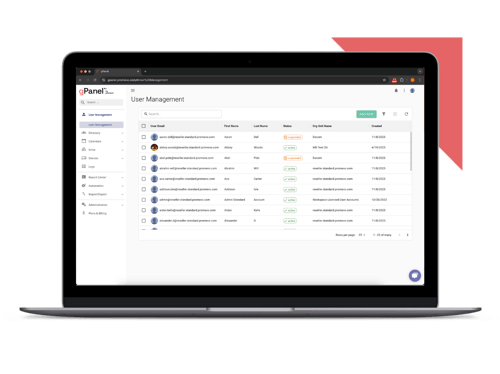
gPanel provides a centralized interface designed specifically for Google Workspace administration. Instead of navigating multiple consoles or switching between user accounts, administrators gain direct visibility into calendar permissions across the domain.
One of the most valuable capabilities involves permission transparency. Administrators can quickly see who has access to each user’s calendar and what level of permission they hold. This visibility eliminates the need to sign in as the user or run manual checks to verify delegation relationships.
gPanel also allows administrators to grant delegation permissions instantly. If an executive hires a new assistant, IT can provide calendar access within seconds through custom policies. This approach speeds up onboarding and ensures assistants can begin coordinating schedules immediately.
Another major advantage appears during employee transitions. When employees leave an organization, lingering calendar access can create security risks. gPanel supports automated offboarding processes that revoke permissions and transfer access when necessary. Administrators maintain control while ensuring that sensitive scheduling information remains protected.
Security and compliance oversight also improves with centralized visibility. Administrators can review which users hold high-level permissions such as managing calendar sharing. This level of oversight helps prevent unauthorized access to confidential meetings or sensitive organizational data.
Perhaps the most significant benefit comes from unified management. gPanel allows administrators to review and adjust calendar permissions alongside Google Drive and Gmail access. Instead of managing each service separately, IT teams can handle access relationships through one consolidated workflow.
For organizations managing hundreds or thousands of users, this unified visibility dramatically simplifies administration.
Best Practices for Business Calendar Management
Successful calendar management requires more than just enabling sharing permissions. Clear policies and consistent practices help organizations maintain both productivity and security.
Follow the Least Privilege Principle
Grant users only the level of access necessary for their role. Most employees need only free/busy visibility for colleagues. Assistants may require editing permissions for executive calendars, while only a small number of trusted users should control sharing settings.
Standardize Color Coding
Assistants managing multiple calendars often benefit from consistent visual organization. Assigning specific colors to executives or departments makes it easier to identify schedules quickly during busy coordination periods.
Use Clear Naming Conventions
Organizations often create additional calendars for projects or leadership teams. Consistent naming improves discoverability and reduces confusion when employees search the directory.
Examples include:
- Marketing Leadership Calendar
- Product Launch Planning Calendar
- Executive Team Travel Calendar
Protect Sensitive Events
Google Calendar includes a private event option that hides details from users who do not have full permissions. Encouraging employees to mark confidential appointments as private helps maintain discretion without restricting overall calendar collaboration.
Managing another user’s Google Calendar plays an important role in modern workplace collaboration. Assistants coordinate leadership schedules, managers organize team availability, and administrators ensure permissions remain secure across the organization.
Google Workspace provides multiple ways to manage calendar access. User-level delegation works well for individual relationships, while the Admin Console allows organizations to establish domain-wide policies and address access issues.
Calendar Management for Google Workspace
As companies scale, centralized tools like gPanel can simplify administration by providing full visibility into calendar permissions and enabling faster delegation across the domain.
When calendar access remains organized and transparent, scheduling becomes easier, collaboration improves, and teams gain the clarity they need to work effectively together.
Schedule a demo if you’d like to try gPanel for yourself.




 User Management
 Group Management
 OU Management
 Gmail Management
 Drive Management
 Calendar Management
 Device Management
 Workspace Reporting
 Workspace Automation
 Billing & License Management


 Colin McCarthy

 Colin McCarthy : Dec 4, 2025, 5:00:01 AM