 User Management
 Group Management
 OU Management
 Gmail Management
 Drive Management
 Calendar Management
 Device Management
 Workspace Reporting
 Workspace Automation
 Billing & License Management

How to Manage Another User's Google Calendar
 Colin McCarthy : Mar 19, 2026, 5:00:00 AM
Explore user-level delegation, Admin Console settings, and how gPanel simplifies calendar permissions, improves security, and streamlines scheduling.



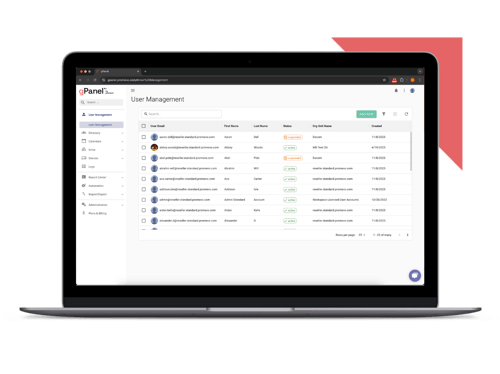
Simplify Google Workspace management with our most essential tools for user and email administration.
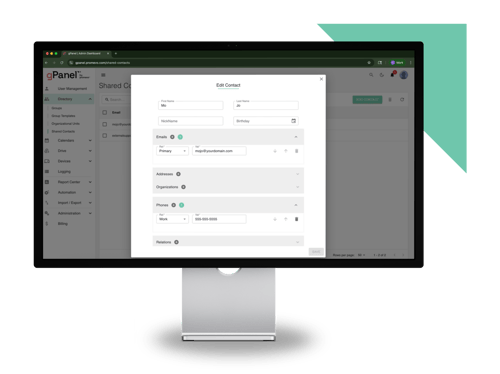
Unlock powerful automation, bulk actions, and reporting features to streamline and scale your admin workflows.
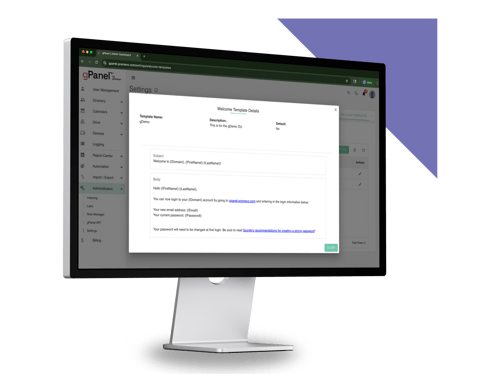
Take full control of your domain with advanced policies, APIs, and security tools built for large or complex environments.
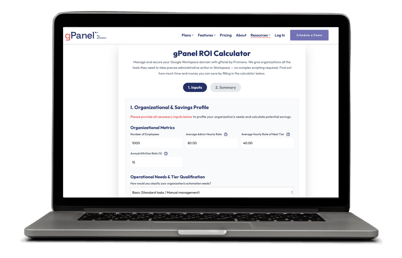

Managing user access sits at the center of Google Workspace security. You need the ability to act quickly when something changes, whether that’s a security risk, role transition, or offboarding event.
Suspending a user gives you that control.
You can immediately block access to Gmail, Drive, and other services without deleting the account or losing data. That makes suspension one of the most practical tools in your admin toolkit. It also gives you flexibility. You can pause access, review the situation, and decide what comes next without rushing into permanent actions.
This guide walks through when to suspend users, how to do it in both the Google Admin console versus gPanel, and how to manage the process more efficiently as your environment grows.
User suspension isn’t just for offboarding. You use it any time you need to pause access without removing the account entirely.
Some common reasons organizations have to suspend a Workspace user include:
You can suspend users directly from the Admin console in just a few steps. This approach works well when you need to suspend individual accounts or small batches of users.
The change takes effect immediately. The user loses access across all Google Workspace services, including Gmail, Drive, and Calendar.
Manual actions work at a small scale. Once your organization grows, you need faster and more flexible options. gPanel gives you multiple ways to manage suspensions without relying on repetitive steps.
The first way to suspend a user in gPanel is to simply open an individual’s record and change the account to the “Suspended” status.
This workflow gives you the same outcome as the Admin console but in fewer clicks while keeping everything centralized. This method works well when you need quick control without switching between tools.
You can create policies that apply suspension to groups of users automatically.
This helps when you need consistency across larger groups:
You define the criteria once, and gPanel applies the action across all matching users. You remove the need to track and update accounts manually.
The gPanel Rules Engine gives you a more advanced layer of control. You can trigger suspensions based on real-time conditions instead of waiting for manual action.
Examples include:
By responding as soon as conditions are met, the Rules Engine helps admins move from reactive management to proactive control.
If your organization uses HR systems or security platforms, the gPanel API lets you tie those systems directly into user management.
You can trigger suspensions automatically based on events like:
This creates a more connected environment where actions happen without delay. You reduce gaps between detection and response.
Suspending a user blocks access while preserving their data. This allows you to maintain continuity without exposing your environment to risk.
Here’s what changes after suspension:
User suspension removes access without disrupting the broader system.
You can restore access at any time if the situation changes. Reactivation takes only a few steps.
The user regains access immediately after reactivation.
To unsuspend a user in gPanel, simply open the user’s record, view the General Settings tab, and change the “Status” field back to “Active.
User management becomes more complex as your organization grows. What worked early on starts to create friction.
You may notice:
These challenges slow down response times and increase risk. They also pull your team away from higher-value work.
Automation helps you move faster and stay consistent without adding overhead.
You don’t need to rely on manual processes to manage Google Workspace users at scale.
gPanel helps you:
You gain control without increasing complexity. Your team spends less time managing access and more time focusing on strategic priorities.
Ready to streamline user management? Schedule a gPanel demo today.
Suspension blocks access while keeping data intact. You use it when access needs to stop temporarily or when you still need the user’s data for compliance or transition purposes.
Deletion removes the account and data permanently.
The data remains in place and accessible to administrators. The user cannot access it until the account is reactivated.
No. Suspension blocks access to all Google Workspace services, including Gmail, Drive, and Calendar.
You can select multiple users in the Admin console and apply suspension. You can also use gPanel policies to automate bulk actions based on defined criteria.
Yes. You can use gPanel’s Rules Engine to trigger suspensions automatically based on activity, attributes, or security conditions.
Yes. The gPanel API allows you to connect external systems and trigger suspensions as part of a larger workflow.


 Colin McCarthy : Mar 19, 2026, 5:00:00 AM
Explore user-level delegation, Admin Console settings, and how gPanel simplifies calendar permissions, improves security, and streamlines scheduling.
 Colin McCarthy : Nov 6, 2025, 5:00:00 AM
Learn how to implement RBAC in Google Workspace and leverage tools like gPanel to manage permissions, protect sensitive data, and streamline...

 Christine Page : Jul 24, 2023, 5:00:00 AM
As an administrator for Google Workspace, it's important to understand the roles and permissions assigned to administrators and the restrictions in...