 User Management
 Group Management
 OU Management
 Gmail Management
 Drive Management
 Calendar Management
 Device Management
 Workspace Reporting
 Workspace Automation
 Billing & License Management

How to Manage Another User's Google Calendar
 Colin McCarthy : Mar 19, 2026, 5:00:00 AM
Explore user-level delegation, Admin Console settings, and how gPanel simplifies calendar permissions, improves security, and streamlines scheduling.



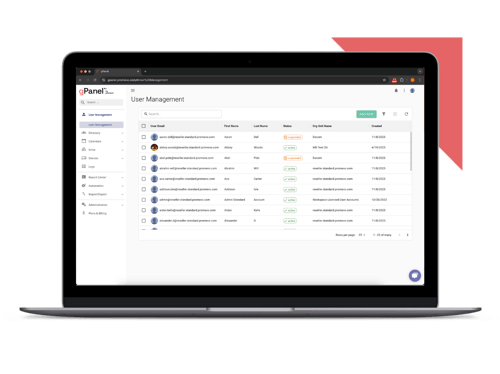
Simplify Google Workspace management with our most essential tools for user and email administration.
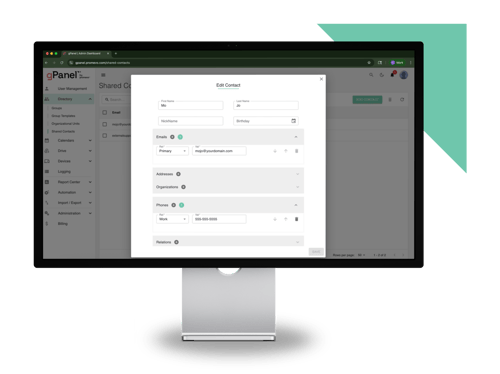
Unlock powerful automation, bulk actions, and reporting features to streamline and scale your admin workflows.
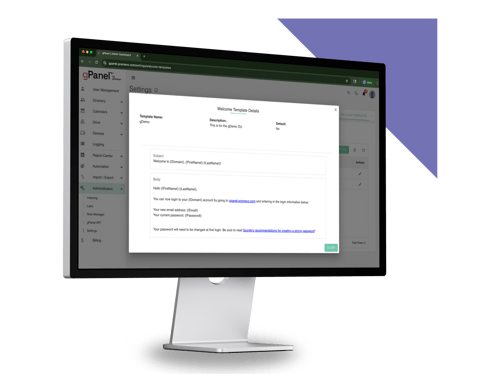
Take full control of your domain with advanced policies, APIs, and security tools built for large or complex environments.

Google Calendar sharing settings determine who can see, edit, and manage every calendar in your organization, and Google defines five access levels that run from free/busy visibility to full manager control.
Users set sharing on their own  calendars, and administrators set the limits in the Google Admin Console. At enterprise scale, the gap between those two layers is where exposure happens, because IT can't easily verify who currently has access to which calendar.
This guide covers the three ways to share a calendar, six admin controls that cap what users can share, all five access levels, and where native tools stop short. It also shows how gPanel by Promevo adds calendar ownership transfers, centralized sharing management, and an audit history of calendar changes.
Google Calendar provides three distinct paths for sharing calendar information. Each option serves a specific operational purpose, and choosing the right method is typically dictated by who needs access and how much visibility they require.
Sharing your Google Calendar allows you to grant calendar access to specific individuals by entering their email addresses. You can assign customized permission levels for each person ranging from basic free/busy visibility all the way to full management control.
Direct sharing is ideal for collaboration between teammates, executives and their administrative assistants, or project leads working with dedicated clients. With this approach, permissions are typically managed on an individual basis, giving you the freedom to modify or revoke access whenever working relationships evolve or projects end.
However, direct sharing can be difficult to keep track of at scale. Every person you add is a separate access entry, and Google's Calendar API documentation caps a single calendar at 6,000 of them.
Public link sharing opens a calendar to anyone who possesses the calendar link or searches for it online. Depending on the permission setting selected, the public can either view full event details or they can only see generic free/busy blocks.
Public Google Calendars are commonly used for broad, external-facing schedules, such as company-wide holiday calendars, public office hours, webinar schedules, or customer-facing events. They’re also often used to display information in third-party applications and public website embeds.
On the other hand, public sharing carries inherent security risks. Before making a calendar public, you should make sure that no internal notes, private links, or sensitive participant details are contained within any past or future events.
Group sharing lets you share a calendar with a Google Group (e.g., marketing-team@yourcompany.com) rather than manually adding dozens of individual user accounts. This approach significantly streamlines administration for department-level or cross-functional team calendars.
Access is automatically governed by group memberships: when a new employee is added to the Google Group, they inherit calendar access immediately; when an employee leaves the group, their access is automatically revoked. Group sharing eliminates the tedious task of updating individual calendar permissions manually every time team membership changes.
Group sharing is only as clean as the group itself, however. A stale roster, a nested group, or an external member added years ago keeps calendar access alive long after anyone remembers granting it.
Routinely revoking calendar access is an essential part of maintaining a clean security posture. However, abruptly removing access can interrupt ongoing projects or cause scheduling confusion if not handled correctly. Following a structured cleanup process like the one detailed below can help administrators reduce overexposure without disrupting daily operations.
Open Settings and Sharing for the Calendar in Question
Open Google Calendar on your web browser and locate the specific calendar in the left-hand navigation sidebar under "My calendars” or "Other calendars." Hover over the calendar name, click the three vertical dots (Options), and select “Settings and sharing.”
While individual end users handle day-to-day calendar invites and basic sharing, Google Workspace administrators also establish the overarching boundaries and policies that govern the entire organization. These admin-level controls are available in the Google Calendar app and the Google Admin Console and ensure that individual sharing decisions align with corporate security standards.
External Sharing Limits for Primary Calendars
Google Workspace administrators can enforce global restrictions on how much primary calendar information users can share outside the organization. For example, admins can set external sharing options to:
This baseline setting prevents employees from accidentally making sensitive corporate schedules public or accessible to external third parties.
 Multi-Party Approval for Sharing Changes
Individual calendar settings control access to one user at a time. Native admin settings set organization-wide limits. Neither one shows an admin who currently has access to what."
gPanel by Promevo adds a Calendars module where admins can view and edit a user's calendars, change sharing permissions, transfer ownership, and review a Calendar History log of actions taken on a calendar.
And the best part of all? None of it requires custom scripts.
Book a demo with us today to see how gPanel can take the Google Workspace admin burden off of your IT teams.
Google's Calendar Help documents five permission levels, which line up with the five access roles in the Google Calendar API. Many how-to guides list only four because the standard sharing dialog shows four labels, so this table covers the level most guides skip.
|
Permission Level |
What People Can See or Do |
Best For |
|
See only free/busy (hide details) |
Can only see blocked-out time slots. Event titles, descriptions, locations, and guest lists are hidden. |
External clients, vendor partners, or large internal cross-department groups who only need availability for scheduling. |
|
See all event details |
Sees event titles, meeting locations, video conference links, descriptions, and guest lists. |
Immediate teammates and cross-functional collaborators who need full context to coordinate daily work. |
|
Make changes (see private events as free/busy) |
Can add, edit, or delete non-private events. Events explicitly marked as "Private" remain hidden and appear only as busy blocks. |
Shared team or project calendars where multiple members maintain schedules without exposing personal appointments. |
|
Make changes and see all event details |
Can add, edit, or delete all events, including private events, and view the full guest list and notes. |
Executive assistants, co-managers, or primary backup team members managing day-to-day schedules directly |
|
Make changes and manage sharing |
Full administrative control: edit events, modify calendar sharing permissions, add/remove access for others, or permanently delete the calendar. |
Co-owners, department leads, or designated IT administrators who fully manage the calendar lifecycle. |
Applying the principle of least privilege (i.e., granting users the exact level of access required to complete their work and nothing more) helps keep your organization secure.
Important Security Note: A narrower individual share can't restrict what a broader setting already allows. If a calendar is public with 'See all event details,' giving one person 'See only free/busy' hides nothing from them. Admin settings work the other way: Google's API documentation notes that an organization-level sharing limit caps the maximum access users can grant, so a calendar shared publicly with edit rights still shows outsiders only free/busy if the organization's external setting is free/busy only.
As enterprises scale past thousands of employees, relying on manual calendar reviews or the native Admin Console can create operational bottlenecks and increase risk exposure. gPanel, on the other hand, provides enterprise-grade automation, visibility, and control to streamline Google Workspace management at scale.
Centralized Visibility Into Every Shared Calendar Organization-Wide
Instead of auditing calendars account by account, gPanel gives IT leaders a single, consolidated view of calendar access across their entire tenant. You can instantly see who owns which calendar, who holds access, and what permission levels are active.
 Automated Calendar Access Revocation During Offboarding
Let’s tackle Workspace administrators most common questions about Google Calendar sharing settings.
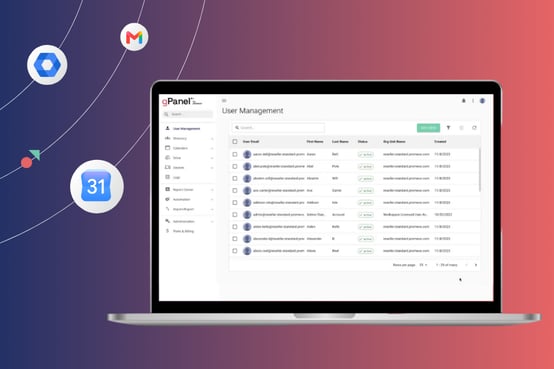 Google Calendar’s native sharing settings offer useful control for individual users. But as your enterprise grows, relying on end users and manual account checks to safeguard organizational schedules becomes unsustainable.
gPanel delivers the centralized console IT leaders need to manage Google Workspace with total clarity, automation, and confidence. Eliminate blind spots, automate lifecycle offboarding, enforce granular policies, and audit sharing permissions across thousands of accounts in seconds.
See the Calendars module in action. Schedule your gPanel demo today and discover how simple enterprise-grade Google management can be.

 Colin McCarthy : Mar 19, 2026, 5:00:00 AM
Explore user-level delegation, Admin Console settings, and how gPanel simplifies calendar permissions, improves security, and streamlines scheduling.
 Colin McCarthy : Dec 4, 2025, 5:00:01 AM
Take control of Google Calendar across your organization. Learn best practices for secure, consistent calendar management — and how gPanel simplifies...

 John Pettit : Aug 7, 2025, 5:00:00 AM
Struggling with Google Workspace chaos? Learn how healthy governance brings clarity, boosts security, and optimizes productivity without red tape.